On this page
If you want to learn how to set up eSIM on iPad, the process is usually simple. Confirm that your iPad supports eSIM, make sure it is a Wi-Fi + Cellular model, then add your digital plan through Settings, a QR code, carrier activation, or a carrier app.
An eSIM on iPad is a built-in digital SIM. You do not need to insert a physical SIM card to get cellular data.
That makes travel easier, especially when you want to install a plan before your trip and connect as soon as you land. At Roamix, you see this setup pattern often with travelers who want mobile data on an iPad for maps, work, streaming, or hotspot use without paying high roaming fees.
If your iPad is compatible and unlocked, you can usually install an eSIM in a few minutes over Wi-Fi and activate it when you reach your destination.
Key Takeaways
- You need a compatible, unlocked Wi-Fi + Cellular iPad to use eSIM.
- You can add an iPad eSIM by QR code, carrier activation, transfer, or app.
- For travel, installing your Roamix eSIM before departure makes setup easier.
What You Need Before You Set Up eSIM On iPad
Before you start, check four things. Your iPad model, whether it has cellular hardware, whether it is unlocked, and whether you already have your eSIM activation details.
Most setup problems come from missing one of those basics.
Check If Your iPad Supports eSIM
Not every iPad supports eSIM. You need a newer iPad with eSIM support built in.
Common supported models include many Wi-Fi + Cellular versions of these devices:
- iPad Pro 11-inch, 1st generation and newer
- iPad Pro 12.9-inch, 3rd generation and newer
- iPad Pro 13-inch Wi-Fi + Cellular
- iPad Air, 3rd generation and newer
- iPad, 7th generation and newer
- iPad Mini, 5th generation and newer
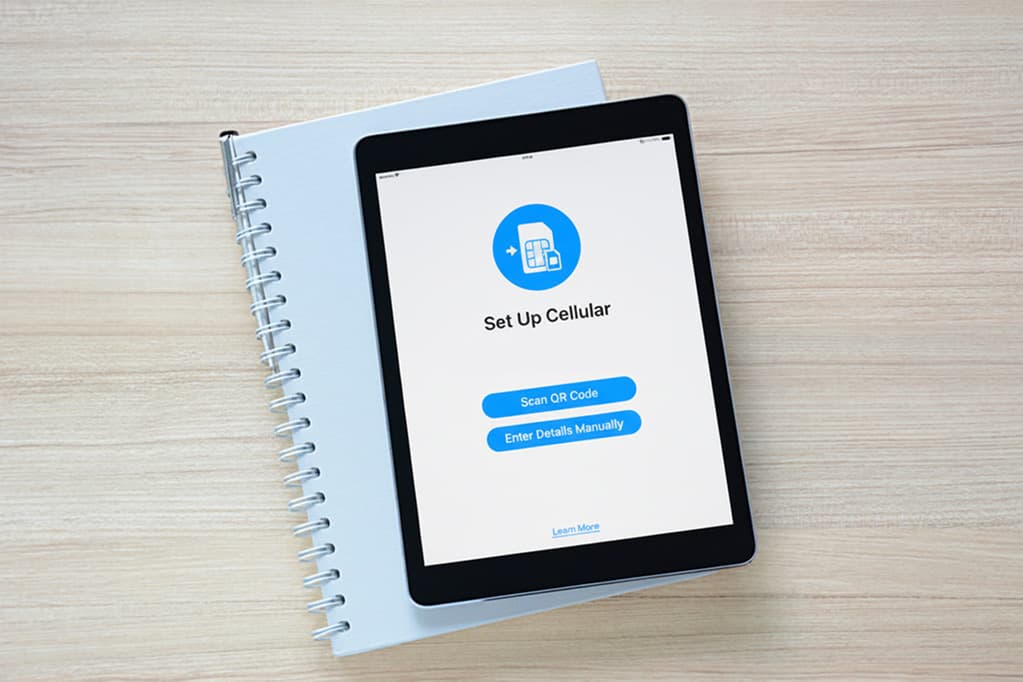
A quick way to check is to open Settings > Cellular Data. If you see options like Add eSIM, Add Cellular Plan, or Set Up Cellular, your iPad likely supports eSIM.
Make Sure You Have a Wi-Fi + Cellular Model
A Wi-Fi-only iPad cannot use eSIM. It does not have the cellular hardware needed for a digital SIM or any mobile data plan.
If you do not see Cellular Data in Settings, you almost certainly have a Wi-Fi-only model.
Confirm Your iPad Is Carrier-Unlocked
Your iPad should be carrier-unlocked if you want to use a travel eSIM from a provider like Roamix.
If your device is locked to one carrier, it may reject other cellular plans. If you bought your iPad through a carrier on a payment plan, check the unlock status before you buy an eSIM.
Have Your QR Code or Activation Details Ready
Most eSIM activation methods need one of these:
- A QR code
- A carrier activation notice
- A manual SM-DP+ address and activation code
- A carrier app or activation link
With Roamix, your QR code and installation details are usually delivered by email within about 60 seconds after purchase and also stored in your account dashboard.
It is smart to open that email on another device, since scanning a QR code from the same iPad is awkward unless you use the add-from-image method on newer iPadOS versions.
How to Set Up a New eSIM On iPad Step by Step
You can set up a new iPad eSIM in a few different ways. The QR code path is the most common for travel data plans.
The key is to stay on stable Wi-Fi during setup and follow each prompt without skipping the data line settings.
Open Cellular Settings and Add a New Plan
Start on your iPad with Wi-Fi turned on. Then go to Settings > Cellular Data.
Look for one of these options:
- Add eSIM
- Add Cellular Plan
- Set Up Cellular
Tap the option you see. Your iPad will then ask how you want to add the plan.
Scan a QR Code to Add eSIM
Choose the QR code option if your provider gave you one. Then use the iPad camera to scan the code, or on newer iPadOS versions, press and hold a QR code from an email or webpage and tap Add eSIM.
After the scan works, tap:
- Continue
- Add Cellular Plan
If your carrier or provider gave you a confirmation code, enter it when prompted.
Keep the QR email open and the code copied nearby, since some installs ask for that extra step unexpectedly.
Enter Details Manually If the QR Code Fails
If the QR code does not scan, you may be able to enter the eSIM details manually. This usually means typing in the SM-DP+ address and activation code from your provider.
Double-check every character. A single wrong letter or symbol can stop activation, and the error message is often vague.
Finish the On-Screen Setup Correctly
Once the eSIM installs, your iPad may ask how you want to use the plan. Pick the eSIM as your cellular data line if that is the plan you want active.
Then confirm these settings:
- The new eSIM is turned on
- Cellular data is assigned to that line
- Data roaming is enabled if you will use it abroad
Other Ways to Activate eSIM On iPad
A QR code is not the only option. Your iPad can also activate an eSIM through direct carrier assignment, an install-ready plan notification, an app, or by joining an existing phone plan.
Use eSIM Carrier Activation
Some carriers can assign an eSIM directly to your iPad. If that happens during initial setup, just turn on the iPad and follow the onscreen prompts.
If your carrier sends the plan after setup, you may see a Carrier Cellular Plan Ready to Be Installed notification. Tap it, then tap Continue to complete activation.
Install a Carrier Cellular Plan Ready to Be Installed
This method is similar to carrier activation, though it shows up as a ready-to-install notice inside Settings. Open Settings, tap the plan notification, and follow the prompts.
If the new plan replaces an older physical SIM-based plan, remove the physical SIM if needed and restart the iPad.
Use a Carrier App to Add a Plan
Some carriers let you activate eSIM from their iPad app. You download the app, sign in, choose a cellular plan, and follow the instructions.
This can be easier than manual setup because the app fills in the activation details for you. It is useful if the QR code email never arrives or you are adding service from a major domestic carrier.
Join or Manage Existing Cellular Plans
Some carriers let you add your iPad to an existing iPhone cellular plan. On your iPad, go to Settings > Cellular Data > Join iPhone Plan and follow the prompts.
Make sure Wi-Fi is on and that both devices use the same Apple Account. If you do not see this option, your carrier may not support it.
How to Transfer or Switch an iPad eSIM
If you already have service on another iPad, you may be able to move that plan instead of starting from scratch. This depends on your carrier’s rules, the type of plan, and whether both devices support eSIM transfer.
Use eSIM Quick Transfer Between iPads
Some carriers support eSIM Quick Transfer. During setup on the new iPad, you may see the option to move your plan from the old one.
If you do, follow the prompts and keep both devices nearby. This works best when both iPads are updated and connected to Wi-Fi.
Transfer iPad Plan After Setup
You can also try the transfer after setup. Go to Settings > Cellular Data > Transfer iPad Plan.
If you see a Transfer button next to your line, tap it and continue. Activation may take a few minutes, so give it time before you assume the transfer failed.
When You Need to Contact the Carrier
If there is no transfer button, or the move gets stuck, you may need carrier help. Some providers block transfers for prepaid data plans, business plans, or older account types.
With Roamix, each purchased eSIM is tied to one device, so contact support before deleting the eSIM or trying to switch devices.
How eSIM Differs From Moving a Physical SIM Card
A physical SIM card can often be removed and inserted into another device in seconds. An iPad eSIM does not work that way because the profile is installed digitally and is often linked to one device.
If you are unsure, do not remove the old plan until the new device is fully connected.
How to Use Roamix eSIM On iPad for Travel
Travel is one of the best reasons to use an eSIM on iPad. You can install your plan before departure, avoid airport SIM shops, and connect quickly when you arrive.
Choose the Right Roamix Country, Regional, or Global Plan
Pick the plan that matches your trip. Roamix offers country-specific plans, regional plans like Europe and Asia, and a global plan for multi-country travel.
If you are crossing borders, a regional or global plan usually saves time and avoids repeated setup. For lighter use like maps, email, and messaging, a smaller plan may be enough.
For work, streaming, or hotspot use, choose more data or an unlimited option.
Install Your Roamix eSIM Before Departure
Buy your plan before you fly. Roamix sends the QR code and activation link almost instantly, usually within 60 seconds, and you can also find it in your account dashboard.
Install it while you still have stable Wi-Fi. That is the easiest time to troubleshoot if anything needs attention.
Activate the Plan When You Reach Your Destination
After you land, open Settings > Cellular Data and make sure the Roamix eSIM is turned on as the mobile data line.
Turn on Data Roaming for that eSIM if required for the destination.
Most Roamix plans begin when your iPad first connects to a supported network at the destination.
If you try to use it before arrival, it may look inactive even though the install was successful.
Use Data, Hotspot, and Top-Ups While Traveling
Once connected, you can use your iPad for browsing, maps, streaming, video calls, and app-based work.
Roamix plans support hotspot tethering on standard data plans, so you can share your connection with a laptop or another device if your iPad model supports Personal Hotspot.
You can track usage and top up through your Roamix dashboard.
Usage alerts at 50% and 80% help you avoid running out unexpectedly, and there are no automatic overage charges.
Common iPad eSIM Setup Problems and Fixes
Most iPad eSIM issues are easy to fix once you know where to look.
The usual causes are device compatibility, install method problems, or incorrect cellular settings after the eSIM has already been added.
No Add Cellular Plan Option Showing
If you do not see Add eSIM or Add Cellular Plan, check for two things first: your iPad model and whether it is a Wi-Fi + Cellular version.
You may have a Wi-Fi-only iPad, or an older model without eSIM support.
Also update to the latest version of iPadOS, since some cellular options display differently on older software.
QR Code Will Not Scan or Install
If the QR code will not scan, raise the screen brightness on the device showing the code and make sure the full code is visible.
You can also use the newer add-from-image method if your iPad supports it.
If scanning still fails, enter the activation details manually.
This can fix many installs where the camera recognized the code, though the setup still refused to continue.
eSIM Added but No Service After Arrival
If the eSIM is installed and you still have no service, confirm that:
- The eSIM line is turned on
- It is selected for cellular data
- Data roaming is enabled
- You are already in a covered destination
Restarting the iPad can also help force a fresh network search.
If you are using a travel plan, check that your destination is included in the plan you bought.
Wrong Line Selected or Data Roaming Turned Off
This is one of the most common travel issues.
The eSIM installs correctly, though your iPad still tries to use another line or has roaming disabled.
Go to Settings > Cellular Data and pick the correct line for mobile data.
Then open that line’s settings and turn on Data Roaming if the plan requires it.
Frequently Asked Questions
Which iPad models support eSIM, and how can I check if mine is compatible?
Many Wi-Fi + Cellular iPad Pro, iPad Air, iPad, and iPad Mini models from recent generations support eSIM. You can check by going to Settings > Cellular Data and looking for Add eSIM, Add Cellular Plan, or Set Up Cellular.
How do I activate a carrier eSIM plan on an iPad Pro?
On an iPad Pro, go to Settings > Cellular Data and choose the option to add or install a plan. Then use your carrier’s method, such as a QR code, a carrier activation notification, or the carrier’s app.
What are the steps to add an eSIM plan on an iPad Air?
Open Settings > Cellular Data, tap Add eSIM or Add Cellular Plan, then scan the QR code or enter the details manually. After installation, make sure the new line is active and selected for cellular data.
How do I activate eSIM on an iPad 10th generation or 11th gen model?
If your iPad 10th generation or newer model is the Wi-Fi + Cellular version, go to Settings > Cellular Data and add the plan there. Follow the prompts for QR code setup, carrier activation, or app-based activation, then enable data roaming if you will use it abroad.
Can I get cellular data on an iPad without a physical SIM card?
Yes, if your iPad supports eSIM, you can use cellular data without a physical SIM card. The eSIM acts as a digital SIM built into the device and lets you install data plans directly in software.
Can a Wi‑Fi‑only iPad use eSIM, or do I need a cellular model?
A Wi-Fi-only iPad cannot use eSIM. You need a Wi-Fi + Cellular iPad because that model has the hardware needed for mobile network access.
More in How-to
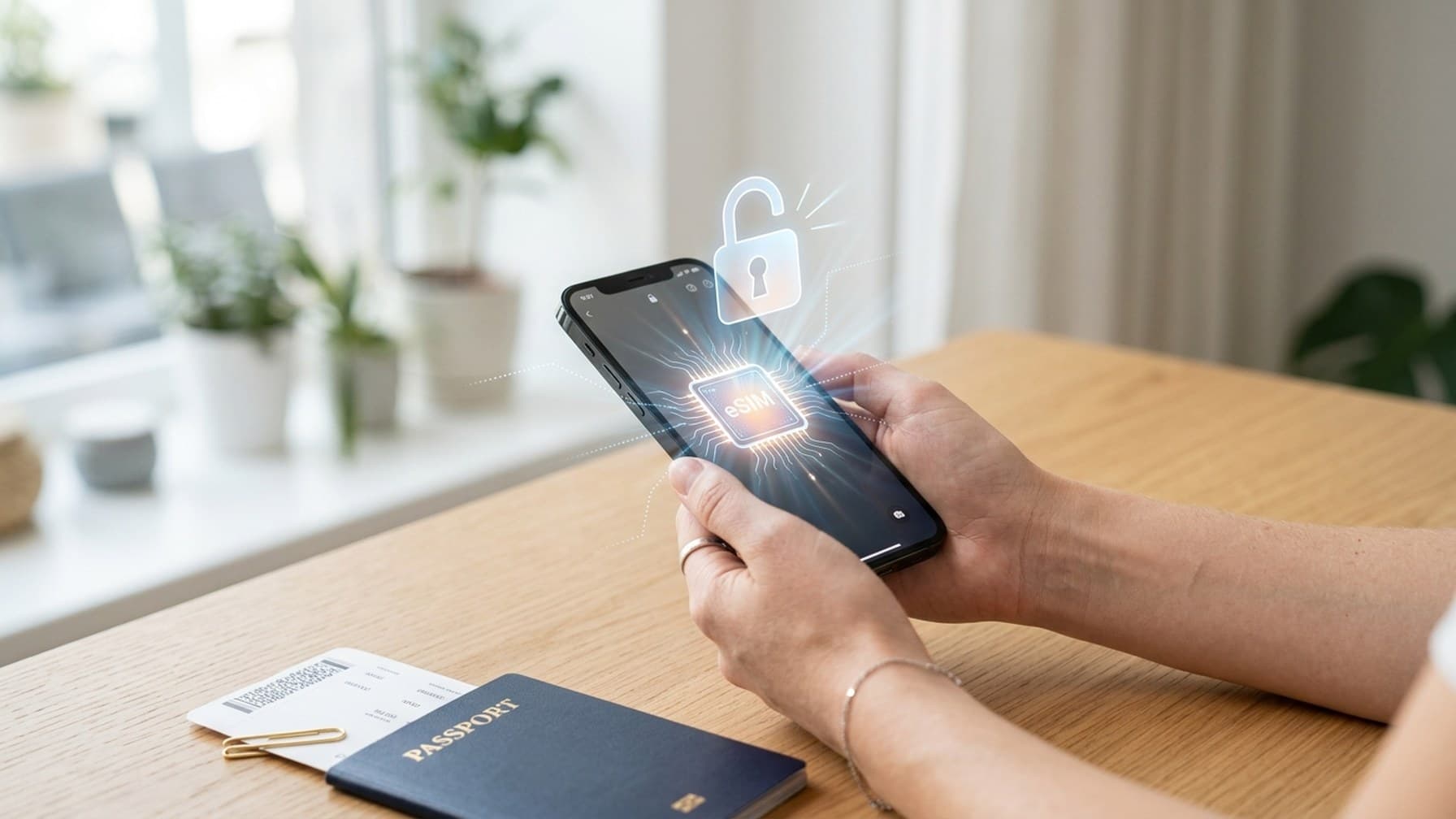
How to Unlock Your Phone for an International eSIM
The most common reason a travel eSIM fails to activate is that the phone is still carrier-locked. Here is how to check your lock status, request an unlock from AT&T, Verizon, or T-Mobile, and get your phone ready before you fly.
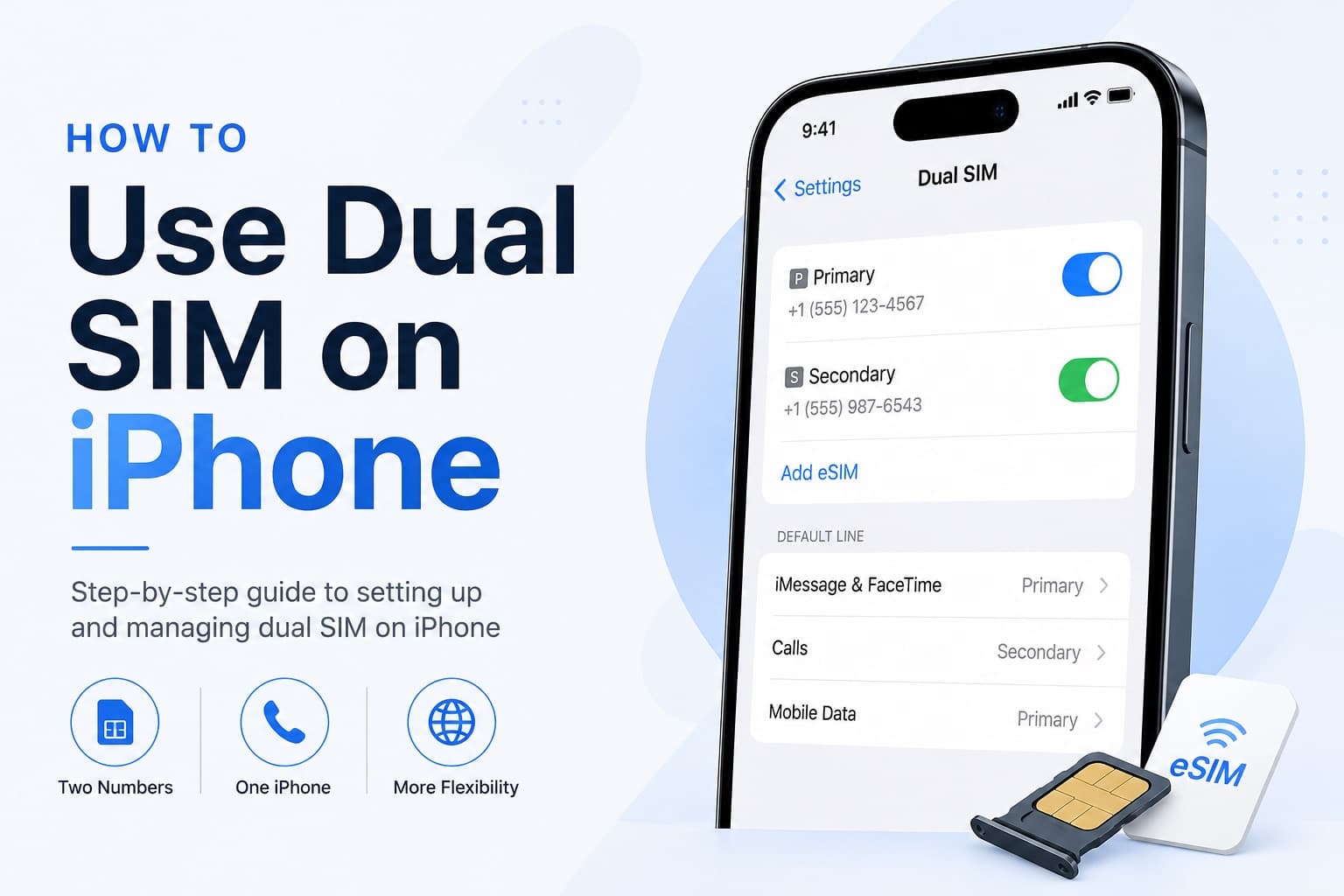
How to Receive SMS and Bank Texts Abroad Using a Travel eSIM
A properly configured dual-SIM iPhone lets you receive bank texts and 2FA codes on your home number while running affordable data through a travel eSIM. This guide walks you through every setting you need to configure before you fly.
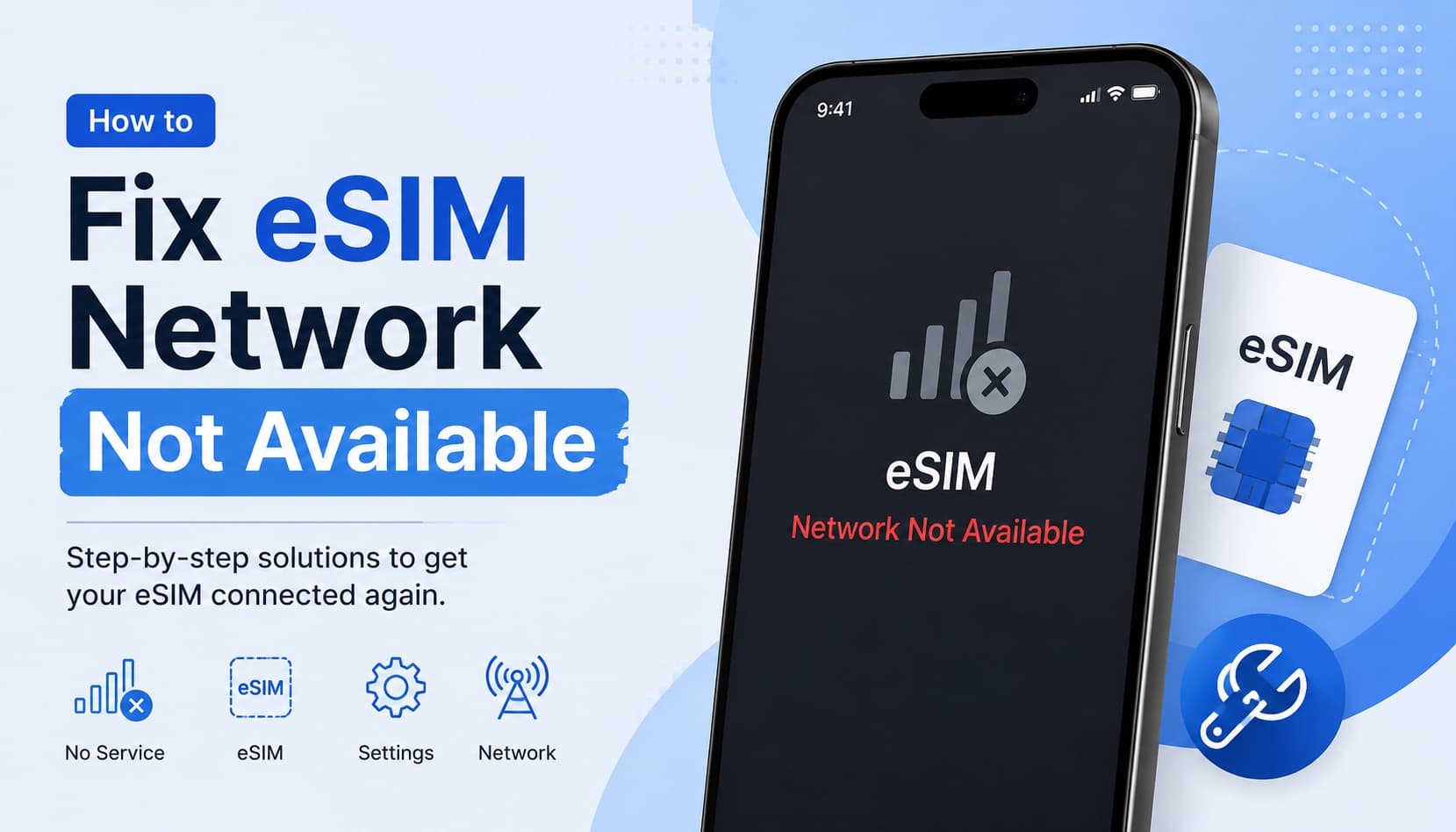
Fixing eSIM Network Not Available: Multi-Network Switching vs QCI Priority
The eSIM network not available error usually comes down to one of three causes: no supported partner network in range, an activation issue, or a settings problem blocking cellular data. This guide explains how to diagnose each one and fix it fast.