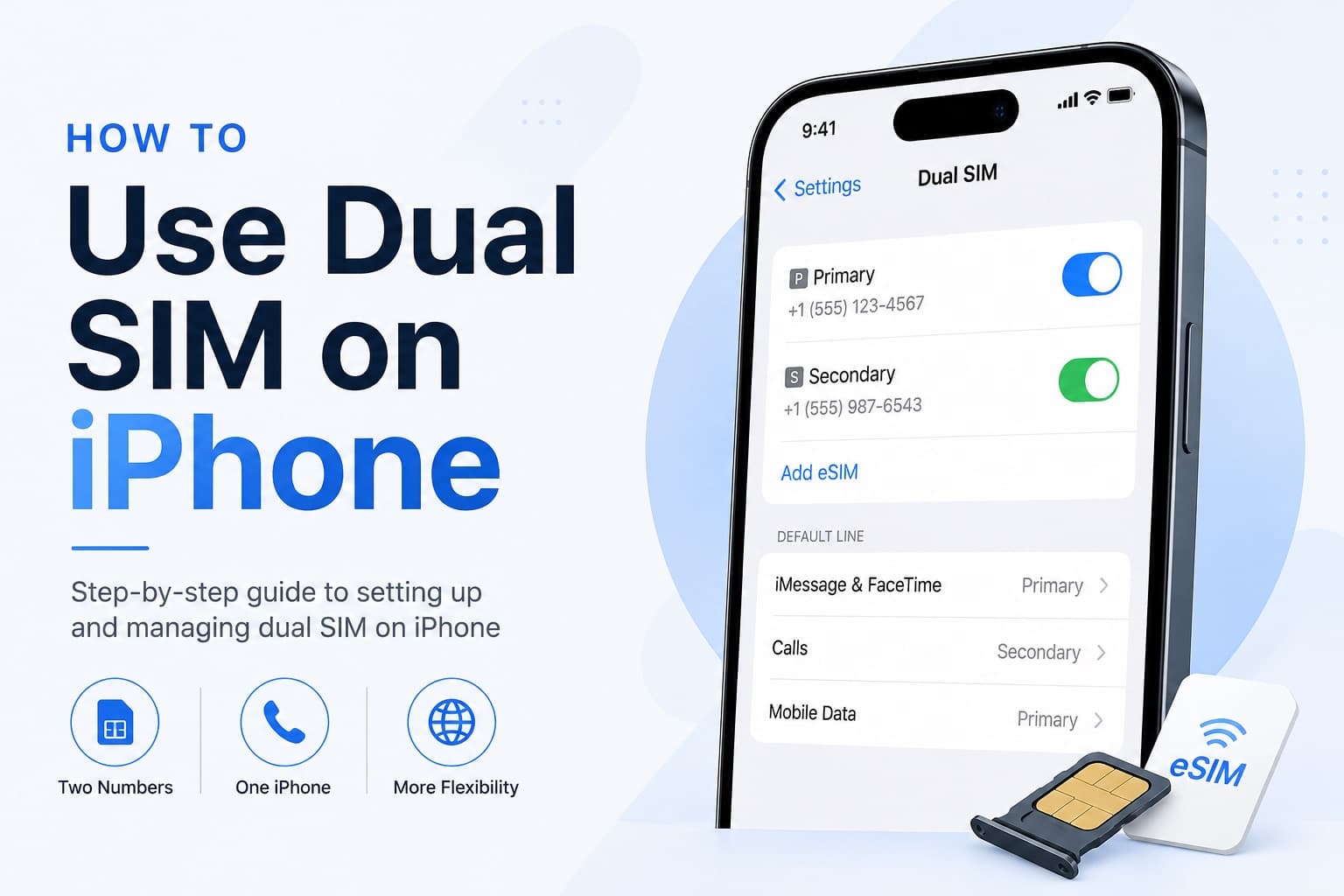
On this page
Leaving for an international trip and suddenly realizing your bank might send a one-time passcode to your home number at the worst possible moment is a genuine fear.
Logging into your account from a foreign country, getting locked out because the 2FA text never arrived, and standing in a hotel lobby at midnight with no access to your money is not a hypothetical. It happens.
The good news is that a properly configured dual-SIM iPhone lets you keep your home number fully active for calls, SMS, and bank verification texts while running all of your data through a separate, affordable travel eSIM.
You get the best of both worlds without paying $10 to $15 per day in carrier roaming fees.
Roamix is a travel eSIM provider built specifically for this kind of setup. It delivers a QR code to your inbox within 60 seconds of purchase, covers 190+ countries, and works alongside your home SIM without requiring you to remove a single physical card.
Head to Roamix to grab your plan before departure so you can install it over Wi-Fi at home and arrive already connected.
This guide walks you through exactly how dual SIM works on a modern iPhone, which settings to change, and how to avoid the traps that catch most first-time users.
Set Up The Safest Travel Configuration First
The safest configuration keeps your home line on but strips away its ability to rack up data charges.
Your Roamix eSIM handles every megabyte of data. Getting the cellular settings right in this order prevents surprises before you even board the plane.
Leave Your Home Line On And Turn Off Data Roaming
Open Settings > Cellular and tap your home carrier line.
You will see a toggle labeled Data Roaming. Turn it off.
This is the single most important step in the whole process.
Your home line stays active, your number is reachable, and incoming SMS messages including bank 2FA texts land as normal.
What stops is your home carrier silently billing you for international data at premium rates.
Do not turn the home line itself off. That would kill your ability to receive calls and texts.
You only want to disable the data component on that line.
Install Your Roamix eSIM From The QR Code
Check the email you received from Roamix after purchase. Open it on another device or print the QR code before you start.
On your iPhone, go to Settings > Cellular > Add eSIM and choose Use QR Code.
Scan the Roamix QR code. Your iPhone will download the eSIM profile in seconds and ask you to label the new line.
Completing this step at home over Wi-Fi means you are not scrambling at the airport or after landing.
The eSIM is installed and ready. It will not consume your data plan until your phone connects to a supported network at your destination.
Set Roamix As The Cellular Data Line
Go to Settings > Cellular > Cellular Data and select your Roamix line.
This tells your iPhone to route all data traffic through Roamix rather than your home carrier.
Keep Allow Cellular Data Switching turned off for now.
That setting allows your phone to fall back to the other line if the current data line loses signal, which can accidentally push data through your home carrier and trigger roaming charges.
Choose The Right Default Voice Line Before You Fly
Go to Settings > Cellular > Default Voice Line and confirm it is set to your home number.
This ensures that when you dial out or someone calls you, the interaction runs through the number your contacts already know.
Your Roamix line handles data quietly in the background while your personal or work identity stays consistent on the voice and SMS side.
Understand How Two Lines Work On iPhone
Modern iPhones handle two simultaneous lines through a combination of embedded SIM technology and carrier-unlocked hardware.
You get two phone numbers without needing two physical cards. The way iOS manages voice and data across those lines affects everything from call quality to whether your 2FA texts arrive reliably.
What Dual SIM Means On Modern iPhones
Every iPhone from the XR and XS onward supports dual SIM.
In the United States, all recent iPhone models ship without a physical SIM card tray at all and rely entirely on two software-based eSIMs.
A dual SIM setup means two cellular plans are active simultaneously on one device.
Each line has its own phone number, its own carrier, and its own data allowance. You can receive calls and texts on both numbers at the same time.
Physical SIM Plus eSIM Vs Two Active eSIMs
Outside the United States, many iPhones still have a physical SIM card tray.
In that configuration, one line lives on a physical SIM card and the second line is an eSIM like Roamix. This is the most common travel setup worldwide.
US-model iPhones support two active eSIMs simultaneously with no physical SIM card involved at all.
Both lines are digital profiles stored on the embedded SIM chip inside the phone. Switching between stored eSIM profiles is quick but you can only run two at once.
Why iPhone Uses DSDS Instead Of Two Data Connections
iPhone uses Dual SIM Dual Standby (DSDS), which means both lines are on standby and can receive calls and texts at the same time.
What DSDS does not do is run two simultaneous data connections.
Only one line carries data at a time. That is why you pick one line as your cellular data line in settings.
The other line stays active for voice and SMS without consuming data or incurring data roaming fees.
When You Need An Unlocked Phone
Your iPhone must be carrier-unlocked to use a travel eSIM alongside your home line.
A locked iPhone will reject eSIM profiles from other carriers.
You can check by going to Settings > General > About and scrolling to Carrier Lock.
If it says No SIM Restrictions, you are good. If your phone is locked, contact your carrier to request an unlock before your trip.
Label And Manage Each Line Without Confusion
Poorly labeled lines lead to accidental calls on the wrong number and data charges you did not expect.
Spending two minutes on labels and line assignments in cellular settings prevents a lot of frustration during the trip.
Rename Each Plan So You Do Not Tap The Wrong Line
Go to Settings > Cellular, tap your home carrier line, and choose a clear name like Home or your actual carrier name.
Tap your Roamix line and label it Roamix Data or Travel Data.
These labels appear every time your iPhone asks which line to use for a call.
Clear names mean you will not accidentally place an international call on the wrong line while exhausted after a long flight.
Pick Which Line Handles Calls Messages And Data
With two lines active, iOS asks you to assign defaults for three things: cellular data, default voice, and iMessage and FaceTime.
- Cellular Data: Set to Roamix
- Default Voice Line: Set to your home number
- iMessage and FaceTime: Keep these tied to your home number so your Apple ID identity stays consistent
These are set under Settings > Cellular and within the Messages and FaceTime apps.
Assign The Right Number To Important Contacts
iOS lets you assign a preferred line to specific contacts. This matters for anyone you call frequently while abroad.
Open a contact, tap Edit, and look for the preferred line option.
Set your employer, family, or anyone who needs to see your real number to your home line. This prevents your Roamix number from appearing as an unknown caller on someone's screen.
Know When iPhone Remembers The Last Used Line
For contacts without a preferred line assigned, iPhone defaults to whichever line you used last when calling that person.
If you test your Roamix line by calling a contact once, your phone may default to that line the next time.
Check the line shown before confirming a call if you are unsure.
Use Your Home Number While Running Data Through Roamix
The dual SIM setup is specifically designed so that your home number remains reachable for incoming calls, SMS, and 2FA messages while Roamix supplies the data connection.
A few specific settings govern how smoothly this works in practice.
Receiving Calls And 2FA Texts On Your Primary Line
As long as your home line is on and not turned off in cellular settings, it receives calls and SMS messages normally.
Bank texts, authentication codes, airline notifications, and calls from family all land on your home number exactly as they would at home.
No special action is required for this.
The critical step you already completed is leaving the home line on while disabling data roaming on that line only.
Making Calls Without Triggering Unwanted Roaming Costs
Most carriers charge international calling rates even on lines with data roaming off.
Voice calls placed or received on your home line while abroad may still incur per-minute charges depending on your plan.
To avoid those charges, use data-based calling apps like WhatsApp, FaceTime Audio, or Google Voice for outgoing calls.
These run through your Roamix data line and cost nothing beyond the data they consume.
What Allow Cellular Data Switching Actually Does
Allow Cellular Data Switching, found under Settings > Cellular > Cellular Data, lets iPhone automatically switch data to your secondary line if the primary data line loses signal.
If your Roamix line drops signal briefly and your phone switches to your home carrier line for data, you may incur roaming charges before you notice.
Keep this off unless you specifically need it and understand the cost implications with your home carrier.
When Call Forwarding May Help
If you are traveling somewhere with genuinely poor cellular coverage on your home carrier's network, your home line may fail to receive calls even though it is technically active.
In that case, set up call forwarding from your home number to a VoIP number or a local number before you leave.
This is a backup for edge cases rather than a standard part of the setup.
Fix The Most Common Problems Before And During Your Trip
Most dual SIM issues with a travel eSIM come down to a few settings being in the wrong state rather than anything more complicated.
Knowing what to check first saves time when you are standing at baggage claim with no connection.
Roamix Installed But No Data After Landing
The most common cause is that data roaming is turned off for the Roamix line as well as the home line.
Go to Settings > Cellular, tap your Roamix line, and confirm that Data Roaming is toggled on for that specific line.
Also confirm that Roamix is still selected as the cellular data line under Settings > Cellular > Cellular Data.
It is possible this setting reverted or was changed during setup.
Home Line Lost Service Or Stopped Receiving Texts
If your home line shows No Service after landing, check that the line is not accidentally turned off.
Go to Settings > Cellular, tap the home line, and confirm the line is enabled.
Some carriers require a brief period to register on a partner network abroad.
If the issue persists for more than 15 minutes after landing, try toggling Airplane Mode on and off to force the phone to re-register.
Wrong Line Selected For Mobile Data
Apps behaving slowly or showing no connection while your signal bars look fine usually means data is routing through the wrong line.
Check Settings > Cellular > Cellular Data and confirm Roamix is selected.
This can also happen if Allow Cellular Data Switching is on and switched the active data line during a moment of weak signal.
What To Check Before Deleting Or Switching eSIMs
Each Roamix eSIM is tied to one device.
Once you scan the QR code, that code cannot be reused on another phone.
If you delete the eSIM profile, you may not be able to reinstall it.
Before deleting any eSIM profile or switching to a new phone, contact Roamix support at <support@roamix.app>.
The support team is available 24/7 and can advise whether your specific plan supports a re-download before you take any action that cannot be undone.
Choose The Best Roamix Plan For Your Itinerary
Roamix offers plan types suited to almost any travel pattern.
Matching the plan to your actual itinerary prevents paying for coverage you will not use or running out of data at a critical moment.
Single-Country Vs Regional Vs Global Coverage
A country-specific plan is the most cost-effective option if your entire trip stays within one destination.
Roamix country plans start from $2.00 for 1GB, with rates dropping to around $1.00 per GB on larger packages.
A regional plan covers multiple countries with one purchase.
The Europe plan covers 30+ countries, which is ideal for anyone doing a multi-city trip without wanting to buy and manage separate eSIMs.
Regional plans for Asia, Latin America, the Middle East, and other areas follow the same logic.
The global plan covers 130+ countries on a single eSIM.
If your trip crosses multiple continents or you travel frequently enough that managing individual plans becomes impractical, the global plan removes that friction entirely.
How Much Data Most Travelers Actually Need
Light use, meaning maps, messaging, and occasional browsing, typically stays under 1GB per day.
Streaming video or making frequent video calls can push that to 2 to 3GB daily.
Roamix offers plans from 1GB up to unlimited.
If you are unsure, use the Roamix Data Calculator on the website to estimate your usage based on how you actually use your phone.
Why Roamix Fits Dual-SIM Travel Better Than Swapping SIMs
Swapping a physical SIM card means losing your home number for the duration of the trip unless you keep the original SIM somewhere safe and swap back for important calls.
With a Roamix eSIM installed alongside your physical home SIM or second eSIM, nothing gets swapped and neither number goes dark.
Roamix also includes hotspot tethering on all standard plans at no extra cost.
You can share the data connection with a laptop or tablet without buying an additional plan.
When To Contact Roamix Support
Reach out to Roamix support before your trip if you are unsure whether your device is compatible. Contact them if you have questions about which plan covers your specific destinations.
You can also contact support if you need to confirm whether your purchased eSIM supports re-download.
During your trip, support is available 24/7 at <support@roamix.app>. The typical email response time is two hours.
Urgent issues related to active eSIMs are prioritized. Live chat is also available on the Roamix website during peak hours if you need a faster response.
Frequently Asked Questions
Can I receive bank verification texts on my home number while abroad?
Yes. As long as your home SIM line is active and not turned off in your iPhone cellular settings, it receives incoming SMS messages including bank 2FA codes normally. The key step is disabling data roaming on your home line only, so it handles texts without generating data charges.
What iPhones support dual SIM with an eSIM?
Every iPhone from the XR and XS onward supports dual SIM. In the United States, all recent iPhone models rely entirely on two software-based eSIMs with no physical SIM tray. Outside the US, most models support one physical SIM plus one eSIM running simultaneously.
How do I set a travel eSIM as my data line on iPhone?
Go to Settings, then Cellular, then Cellular Data, and select your travel eSIM line. This routes all data traffic through the eSIM instead of your home carrier. Also keep Allow Cellular Data Switching turned off to prevent your phone from accidentally using your home carrier for data.
What happens if I delete my Roamix eSIM profile by mistake?
Each Roamix eSIM is tied to one device and the QR code cannot be reused once scanned. If you delete the profile, you may not be able to reinstall it. Before deleting any eSIM profile, contact Roamix support to confirm whether your specific plan supports a re-download.
More in How-to
Fixing eSIM Network Not Available: Multi-Network Switching vs QCI Priority
The eSIM network not available error usually comes down to one of three causes: no supported partner network in range, an activation issue, or a settings problem blocking cellular data. This guide explains how to diagnose each one and fix it fast.

What Makes Setting Up a Travel eSIM Hassle-Free in 2026?
Modern travel eSIMs like Roamix deliver a QR code in 60 seconds, install in under 5 minutes, and connect automatically on arrival. Here's exactly what makes setup so seamless compared to the old way.
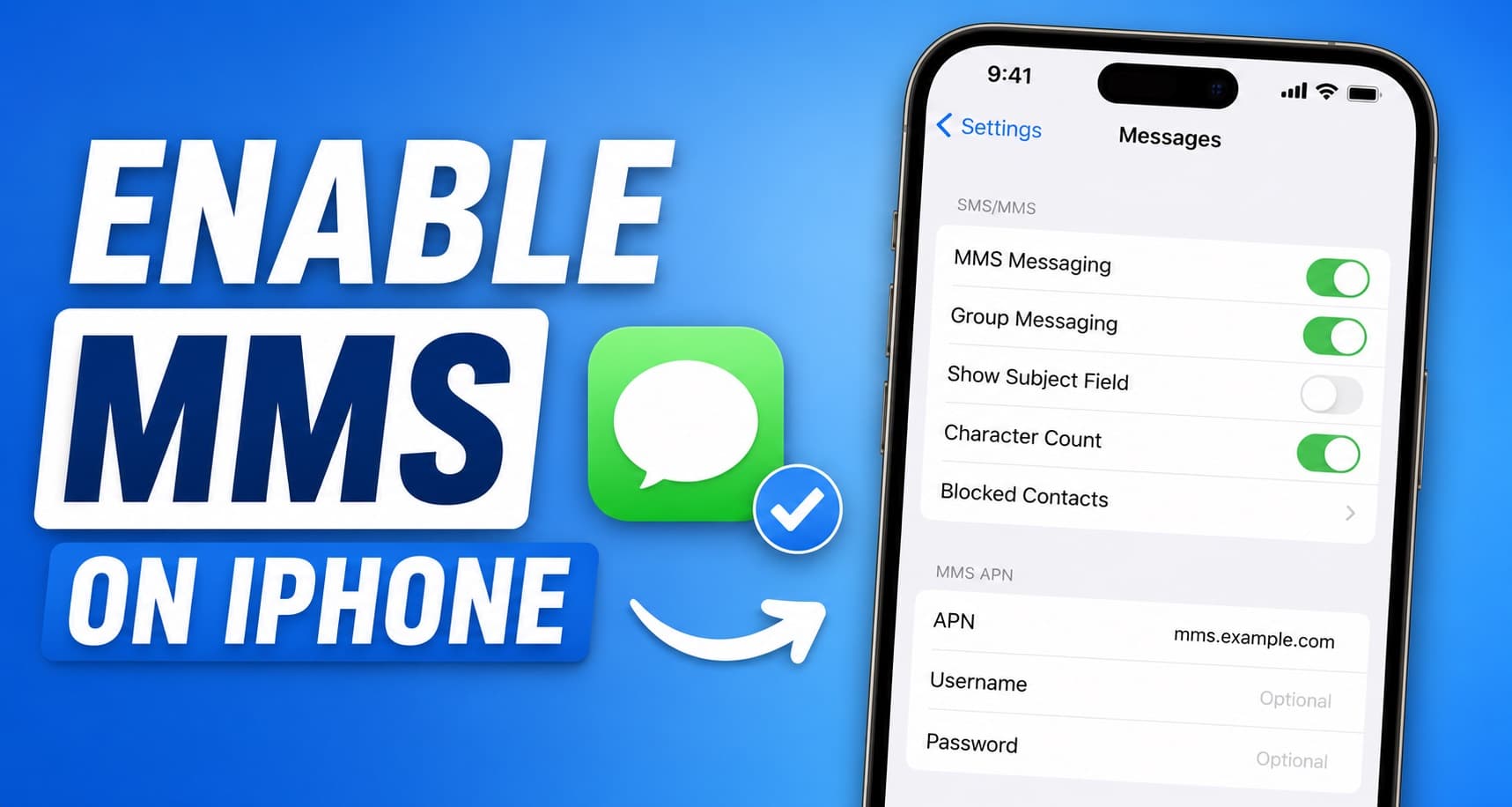
How to Enable MMS for iPhone and Fix Common Issues
A step-by-step guide to turning on MMS messaging on iPhone, fixing the most common reasons picture messages fail, and understanding how MMS works with eSIM and dual-SIM setups.