
On this page
If you are asking how do I turn off roaming on iPhone, the short answer is simple: open Settings, tap Cellular, tap Cellular Data Options, and switch Data Roaming to Off.
That one setting can help you avoid costly international roaming charges if you are traveling outside the United States or crossing a border where your iPhone may connect to another network.
If you use a travel eSIM from a provider like Roamix, you may also need to know when roaming should stay on, because some travel eSIMs work differently than your home carrier line.
Key Takeaways
- You can disable data roaming in a few taps from your iPhone settings.
- Turning roaming off stops mobile data on outside networks, not Wi-Fi use.
- A travel eSIM can be a cheaper option than standard carrier roaming plans.
How To Turn Off Roaming On iPhone
The exact menu is easy to find once you know where Apple places it.
The main thing to check is whether your iPhone uses one line or two, because dual-SIM and dual eSIM setups add one extra step.
Turn Off Data Roaming On A Single-SIM Or eSIM iPhone
If you use one physical SIM or one eSIM line, follow these steps:
- Open Settings.
- Tap Cellular.
- Tap Cellular Data Options.
- Turn Data Roaming Off.
That setting stops your iPhone from using cellular data on networks outside your carrier’s normal coverage area.
If you are abroad, your apps will only work online through Wi-Fi unless you turn roaming back on.
Turn Off Data Roaming On A Dual-SIM Or Dual eSIM iPhone
If your iPhone has two active lines, you need to check the roaming setting on the correct line.
- Open Settings.
- Tap Cellular.
- Under SIMs, tap the line you want to change.
- Tap Cellular Data Options.
- Switch Data Roaming Off.
If you use dual SIM, double-check both lines before you fly.
Turn Off Cellular Data Completely For Maximum Protection
If you want the strongest protection against accidental charges, turn off cellular data entirely.
- Open Settings.
- Tap Cellular.
- Toggle Cellular Data Off.
This blocks mobile data even in places where your carrier has coverage.
Your iPhone can still connect to Wi-Fi, and you can turn cellular data back on later if needed.
How To Confirm Roaming Is Actually Off
After you change the setting, go back into Cellular Data Options and make sure the Data Roaming toggle is gray, not green.
It is also smart to verify these items:
- Your home SIM is not set as the active data line by mistake.
- Cellular Data Switching is off if you want tighter control.
- Your carrier app does not show an active international roaming pass.
- Your iPhone status changes normally when you arrive, without using your home line for data.
What Turning Off Roaming Actually Does
Roaming settings are often confused with regular cellular settings.
The key difference is that data roaming controls whether your iPhone can use mobile data on another network, especially during international travel.
The Difference Between Data Roaming And Cellular Data
Cellular Data is your phone’s general mobile internet connection.
Data Roaming is the permission for your iPhone to use that data when it is outside your carrier’s network.
If cellular data is on and roaming is off, your phone can still use mobile data at home.
It just should not use foreign or outside partner networks for data.
What Still Works When Roaming Is Off
When roaming is off, your iPhone can still do a few things:
- Connect to Wi-Fi
- Use apps over Wi-Fi
- Make emergency calls where supported
- Keep your eSIM installed on the phone
Calls and texts depend on your carrier, your plan, and whether your line is also roaming for voice service.
For many travelers, the main blocked feature is cellular data usage.
When Airplane Mode Is The Better Option
Airplane Mode is the stricter choice when you want to shut down cellular connections fast.
That is useful on flights, in border regions, or when you are not sure how your carrier handles international roaming.
You can still turn Wi-Fi back on manually while Airplane Mode stays enabled.
This is a good idea if you want zero chance of accidental cellular use.
Best Ways To Avoid Roaming Charges While Traveling
Turning off roaming helps, though it is not your only option.
The best method depends on how much data you need, whether you want to keep your U.S. number active, and how long you will be away.
Use An eSIM Instead Of Carrier International Roaming Plans
A travel eSIM is often the easiest option if your phone is unlocked and eSIM-compatible.
You can buy a plan before departure, install it over Wi-Fi, and connect when you land.
With Roamix, you can choose country, regional, or global eSIM plans for 190+ destinations.
Plans arrive by QR code, usually within 60 seconds, and you can keep your regular number active on a dual-SIM iPhone while using the eSIM for data.
This setup is often much cheaper than standard international roaming plans from major carriers in the U.S.
When Local SIM Cards Still Make Sense
A local SIM card can still be a good fit if you are staying in one country for a long time or if you need a local number.
It may also help in places where local prepaid plans are especially cheap.
The tradeoff is convenience.
You may need to find a store, show ID, swap SIMs, and deal with local setup steps after arrival.
How Roamix Helps Travelers Stay Connected Without Surprise Fees
Roamix is built for travelers who want simple mobile data without hidden charges.
You can install the eSIM before your trip, track usage from your account dashboard, and add top-ups without reinstalling anything.
You also get usage alerts at 50% and 80%, no automatic overage charges, and hotspot support on standard plans.
That makes it easier to stay connected without the bill shock that often comes with international roaming.
How To Check Data Usage Before And During Your Trip
Checking your usage before departure can prevent surprises later.
During travel, it helps you see whether your iPhone is using the correct line and whether your data plan is lasting as expected.
Where To Check Data Usage On iPhone
On your iPhone, go to:
Settings → Cellular
Scroll down to view Current Period usage and app-by-app cellular data use.
If you want a clean trip total, reset your statistics right before travel so the number starts fresh.
How To Monitor Current Period Roaming Usage
Some carriers show roaming usage inside their own app or account portal.
On the iPhone itself, the built-in usage screen is helpful, though carrier billing details are often more exact.
A practical tip is to check usage right after landing and again at the end of day one.
That quick check often reveals if the wrong SIM line is using cellular data.
How Roamix Usage Alerts And Top-Ups Reduce Overages
If you use Roamix, your dashboard lets you view plan details, check remaining data, and top up instantly.
You also receive usage alerts at 50% and 80%.
There are no automatic overage charges.
Instead of being billed unexpectedly, you decide if and when to add more data.
What To Do If You See No Service Or SOS Only Abroad
Seeing No Service or SOS Only abroad usually means your iPhone is not connecting to the right network or line yet.
In many cases, the fix is simple and only takes a minute or two.
Check The Correct SIM Or eSIM Line
Go to Settings → Cellular and review your active lines.
Make sure the intended travel line is turned on and that your home line is not being used for mobile data by mistake.
This is one of the most common issues with dual-SIM travel setups.
The eSIM may be installed correctly, while the data line selection is wrong.
Review Roaming Settings And Data Line Selection
Open the line you want to use and check Cellular Data Options.
If your travel eSIM requires roaming to be enabled, turn it on for that line only.
Also confirm:
- The correct line is selected for Cellular Data
- The line is enabled
- Data roaming matches the plan requirements
- Your home carrier line is not set as default data
Use Airplane Mode To Refresh The Connection
Turn Airplane Mode on for about 10 to 15 seconds, then turn it off.
This forces your iPhone to search for a network again.
That simple reset often clears temporary connection issues after landing or after crossing into a new country.
When To Contact Your Carrier Or Roamix Support
Contact your home carrier if you are trying to use their international roaming plan and the line will not register abroad.
Contact Roamix support if your Roamix eSIM is installed, active, and still not connecting to a supported local network.
Roamix offers 24/7 human support, and urgent recent-purchase or active-eSIM issues are prioritized.
When You Should Leave Roaming On
Roaming should not always stay off.
In some travel setups, leaving it on is exactly what allows your phone to connect properly.
Using A Travel eSIM That Requires Roaming To Be Enabled
Some travel eSIMs use partner networks and need Data Roaming turned on for that eSIM line.
This does not mean you will be billed by your home carrier, as long as your home line is not the one using data.
This point confuses many travelers.
Roaming can be off for your home carrier line and on for your travel eSIM line at the same time.
Keeping Your Home Number Active With Dual SIM
Dual SIM lets you use one line for data and another for calls or texts.
This is useful if you want to keep your U.S. number active for iMessage, banking codes, or personal calls.
The safest setup is usually:
- Home SIM stays on for calls and texts
- Travel eSIM is set as the data line
- Home line data roaming stays off
- Travel eSIM data settings match its instructions
Choosing Between Carrier Roaming And Roamix For International Data
Carrier roaming can be convenient if your plan already includes international data at a fair rate.
For many U.S. travelers, it is still more expensive than using a travel eSIM.
Roamix is often the better fit if you want transparent pricing, regional coverage, instant setup, and no automatic overage charges.
It is especially useful for multi-country trips where you do not want to keep switching SIMs.
Frequently Asked Questions
Where can I find the setting to disable data roaming on my iPhone?
Go to Settings → Cellular → Cellular Data Options. Then switch Data Roaming to Off. If you use dual SIM, choose the correct line first under the SIMs section.
How do I turn off roaming to avoid unexpected charges while traveling?
Turn off Data Roaming before you leave and, if you want extra protection, turn off Cellular Data too. You should also check which SIM or eSIM is set as your data line, since many roaming charges happen when the wrong line stays active.
Should I keep roaming on or off on my iPhone when I’m abroad?
Keep it off if you are trying to avoid your home carrier’s roaming charges. Keep it on only for a line that needs it, such as certain travel eSIMs or a carrier plan that includes international roaming.
How do I disable roaming on an iPhone 15?
On iPhone 15, open Settings, tap Cellular, select the right SIM or eSIM line if needed, tap Cellular Data Options, and turn Data Roaming off. The path is the same for most current iPhones running recent iOS versions.
How do I disable roaming on an iPhone 14?
Open Settings → Cellular → Cellular Data Options and switch Data Roaming off. If your iPhone 14 uses dual eSIM, check each active line so the right one is disabled.
How do I disable roaming on an iPhone 13?
On iPhone 13, go to Settings and tap Cellular. Select Cellular Data Options and toggle Data Roaming off. If you travel often, confirm this setting before every international trip.
More in How-to
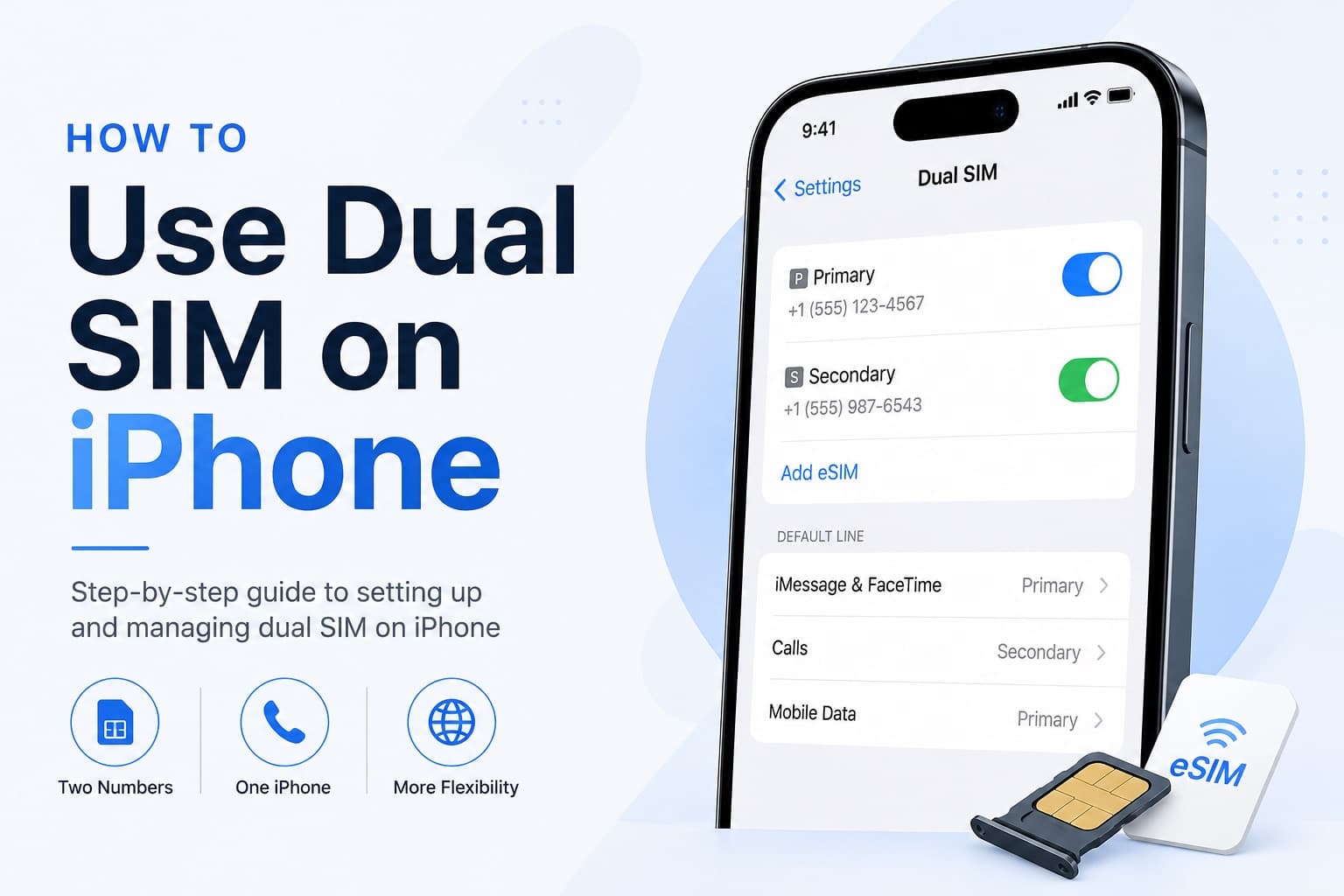
How to Receive SMS and Bank Texts Abroad Using a Travel eSIM
A properly configured dual-SIM iPhone lets you receive bank texts and 2FA codes on your home number while running affordable data through a travel eSIM. This guide walks you through every setting you need to configure before you fly.
Fixing eSIM Network Not Available: Multi-Network Switching vs QCI Priority
The eSIM network not available error usually comes down to one of three causes: no supported partner network in range, an activation issue, or a settings problem blocking cellular data. This guide explains how to diagnose each one and fix it fast.

What Makes Setting Up a Travel eSIM Hassle-Free in 2026?
Modern travel eSIMs like Roamix deliver a QR code in 60 seconds, install in under 5 minutes, and connect automatically on arrival. Here's exactly what makes setup so seamless compared to the old way.