On this page
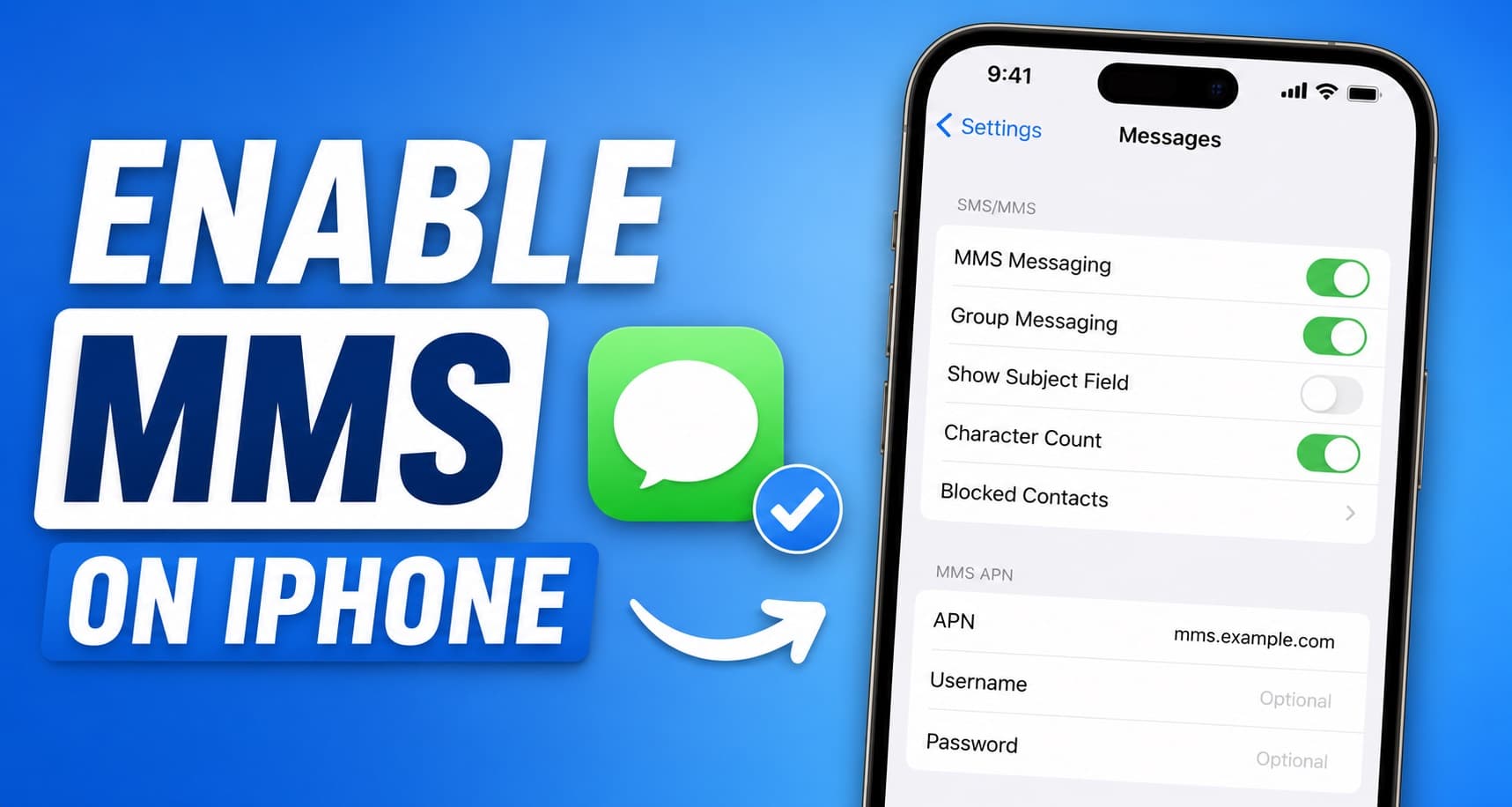
If you are looking for how to enable MMS for iPhone, you usually need to do three things: turn on MMS Messaging in settings, make sure cellular data is active, and confirm your carrier has MMS enabled on your line.
MMS stands for multimedia messaging service. It is what your iPhone uses to send pictures, videos, and some group texts when iMessage is not available, especially when texting Android users.
The setting is quick to turn on, but most problems come from carrier setup, weak data service, or a missing line setting rather than the Messages app itself.
At Roamix, mobile connectivity issues come up often when travelers switch lines, use dual SIM, or rely on data abroad. Understanding the difference between iMessage, SMS, and MMS helps you troubleshoot faster when picture messages stop working.
Key Takeaways
- MMS on iPhone needs both the right Messages setting and working cellular data.
- If MMS still fails after turning on the toggle, carrier settings, account provisioning, or attachment size are common causes.
- When you travel, data eSIMs can help with internet access, though native MMS still depends on your main carrier line.
Turn On MMS in iPhone Settings
To enable MMS messaging on iPhone, you need the Messages setting turned on and a working cellular connection. If either one is missing, your photos and videos may fail to send to non-iPhone users.
Find the Messages Settings Menu
Open Settings, scroll down, and tap Apps on newer iOS versions, then tap Messages. On some older iPhones and iOS versions, you may see Settings > Messages directly.
Switch On MMS Messaging
In the Text Messaging area, turn on MMS Messaging. This setting allows your iPhone to send media through your carrier's multimedia messaging service when iMessage is not being used.
If you also use mixed-device group chats, turn on Group Messaging if that option appears.
Enable Cellular Data Before Testing
Go to Settings > Cellular and make sure Cellular Data is on. MMS does not work over Wi-Fi alone on iPhone, even if your internet connection looks fine.
You can be on strong home Wi-Fi and still fail to send a picture message to an Android phone because your cellular data line is off.
Check Group Messaging if Needed
If your group texts are stuck or split into separate threads, check that Group Messaging is enabled. Some group conversations switch to MMS when not everyone uses iMessage. This matters most when one or more people in the chat use Android, or when iMessage is unavailable on someone's device.
Understand When iPhone Uses MMS Instead of iMessage
Your iPhone does not use MMS for every message. It switches between iMessage, SMS, and MMS based on the type of content, the recipient's device, and your network setup.
MMS vs SMS vs iMessage
- SMS is plain text sent over your carrier's cellular network.
- MMS is used for media like photos, videos, audio clips, and some group messages.
- iMessage is Apple's internet-based system for messages between Apple devices.
If both you and the other person use iMessage, media usually goes through Apple's service instead of MMS. If you text an Android user, your iPhone falls back to SMS or MMS.
Why Photos, Videos, and Mixed-Device Group Chats Use MMS
When you attach a photo or video to a text for a non-iPhone user, your iPhone usually sends it as MMS. The same thing often happens in group chats that include both iPhone and Android users.
That is why you may send normal texts fine and still fail on pictures. The phone is not using the same channel.
Why MMS Requires Carrier Support and Mobile Data
MMS depends on your mobile carrier. Your line has to be provisioned for MMS, and mobile data has to be available. If your account does not support it, the toggle may be missing or unusable.
Fix MMS Not Working After You Enable It
If you already turned on MMS and it still does not work, the next step is basic network troubleshooting. In daily use, these fixes solve most failed picture messages in a few minutes.
Restart iPhone and Try Again
Restart your iPhone first. It often clears a stuck mobile data session or a messaging process that did not refresh after a settings change. After restart, test with one small photo to one non-iPhone contact. That gives you a clean test instead of guessing inside a busy group thread.
Update iOS and Carrier Settings
Go to Settings > General > Software Update and install any iOS update. Then go to Settings > General > About and wait a moment to see if a carrier settings update appears.
This is especially useful after major iOS changes. Some users dealing with MMS issues after a recent iOS update are actually dealing with an outdated carrier bundle, not a missing setting.
Turn Off Wi-Fi Calling for Testing
Go to Settings > Cellular > Wi-Fi Calling and turn it off for a quick test. Some users find MMS works again once the phone is forced to rely more directly on the mobile network. You do not need to leave it off forever. This is just a useful test when MMS fails in a repeatable way.
Check Attachment Size Limits
If a text message sends and a photo message does not, the file may be too large. Carriers often limit MMS size, and videos are the usual problem. A short screenshot or compressed image is the best test. If that works and a long video does not, size is likely the issue.
Confirm Your Line Is Active and Supports MMS
Check that your line can place calls, send standard texts, and use mobile data. If any of those fail, MMS may fail too.
This matters a lot on dual-SIM phones. Sometimes the eSIM has data, the physical SIM has the number, and the wrong line is selected for messaging, which breaks picture messages until the correct line is active.
What to Do if the MMS Toggle Is Missing
If you cannot find the MMS switch at all, your iPhone is usually not seeing a carrier setup that supports it. This is more common with restricted plans, managed phones, and devices without an active cellular line.
Check Carrier Plan and Account Provisioning
Some plans do not include MMS, or the feature is not fully enabled on the account. This is common on older prepaid plans, business lines, or recently transferred numbers.
When the toggle is missing, the problem is often on the carrier side, not your iPhone.
Make Sure the iPhone Has a Cellular Line
Your iPhone must have an active SIM or eSIM line for MMS settings to appear normally. A Wi-Fi-only setup or inactive cellular line can hide messaging options tied to the carrier.
If you recently removed a SIM or switched eSIMs, recheck your active line settings under Settings > Cellular.
Look for Restrictions on Managed or Locked Devices
Work phones and school-managed devices may have restrictions that hide or control message settings. Carrier-locked phones can also behave differently if the line setup is incomplete.
If your iPhone is managed by an employer, some network settings may not be editable by you.
Contact Your Carrier for Backend Activation
If the setting is still missing, contact your carrier and ask whether MMS is enabled on your line. Several community reports about a missing MMS option in iPhone settings point to backend activation or account provisioning as the real fix.
Ask them to confirm:
- MMS is active on your line
- Your number is fully provisioned
- Carrier settings are current
- There are no messaging blocks on the account
Use MMS While Traveling Internationally
MMS can get less predictable when you are outside your home country. Roaming rules, dual-SIM behavior, and carrier support all affect whether picture messages work the same way they do at home.
Why MMS Can Behave Differently Abroad
MMS may require roaming access from your home carrier. If your carrier does not support international MMS on your plan, your phone may send iMessages and app-based messages fine while MMS fails.
This is a common travel surprise. Internet works, Maps works, WhatsApp works, and picture messages to Android still fail.
How Dual-SIM Setup Affects Messaging on iPhone
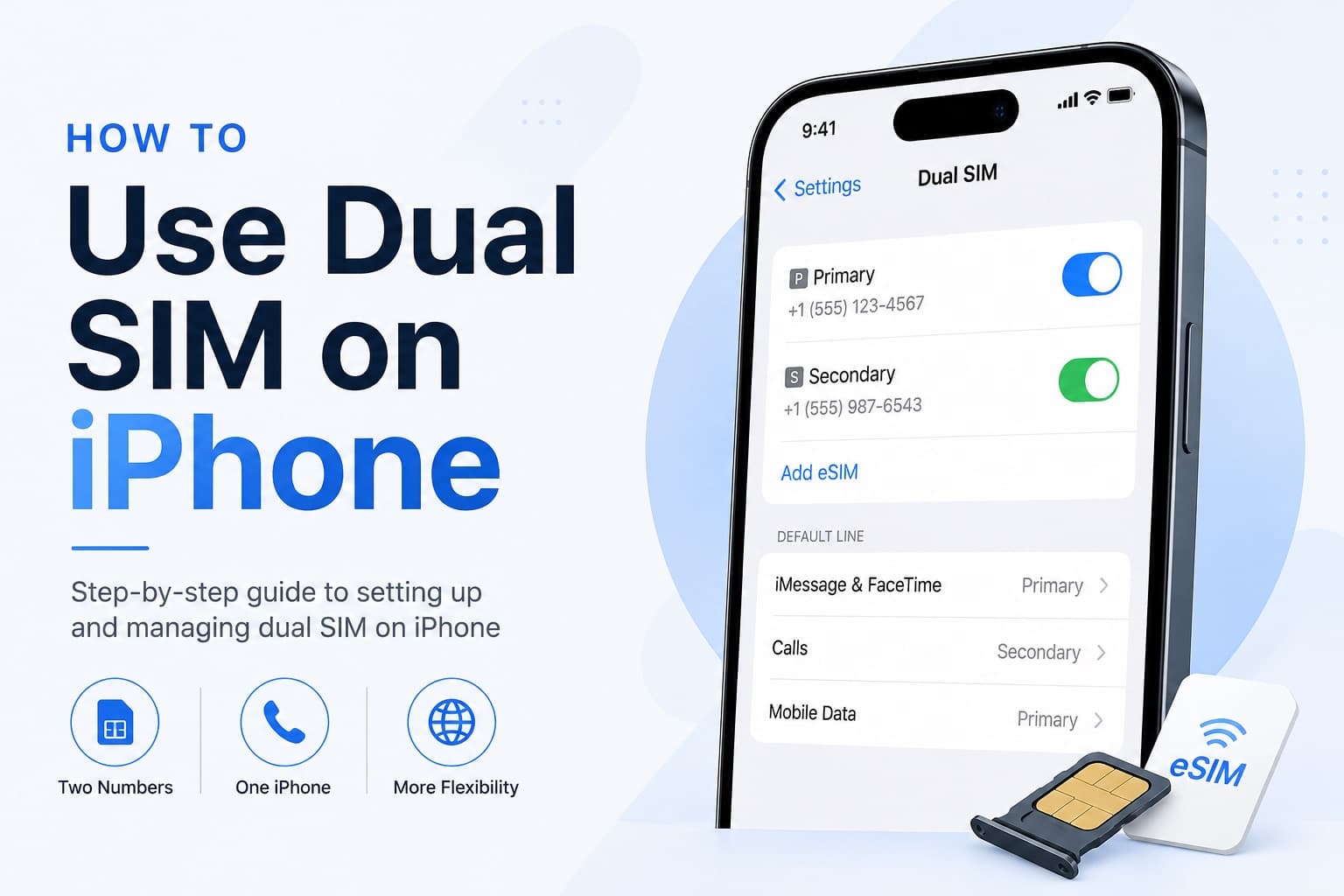
On dual-SIM iPhones, one line may handle your main number while another handles data. If your iPhone is using one line for data and another for texting, MMS behavior depends on how your carrier supports that setup.
Check which line is your default voice line, which line is used for cellular data, and whether your home carrier line remains active.
When a Travel eSIM Helps With Data but Not Native MMS
A travel eSIM can give you fast mobile data abroad. Native MMS usually still depends on your primary carrier number and its roaming support.
In other words, data-only service helps internet apps, not always your carrier-based picture messaging. Using a Roamix eSIM ensures you have reliable data for all your travel needs, making it easier to stay connected, use messaging apps like WhatsApp, and troubleshoot any remaining carrier issues from a stable connection.
Frequently Asked Questions
Why is MMS not working on my iPhone even though MMS Messaging is turned on?
The most common reason is that cellular data is off. MMS does not send over Wi-Fi alone and requires an active cellular data connection. Check that Cellular Data is enabled in Settings, then try restarting your phone and sending a small photo as a test.
Where is the MMS Messaging toggle on iPhone and how do I turn it on?
On iOS, go to Settings, then Apps, then Messages. On older iOS versions the path may be Settings, then Messages directly. In the Text Messaging section, turn on MMS Messaging. If the toggle is missing, the issue is likely on the carrier side rather than with your iPhone settings.
Why can't I see the MMS Messaging option in my iPhone settings?
If the MMS toggle is missing, your carrier may not have MMS provisioned on your line. This is common with older prepaid plans, recently transferred numbers, or business lines. Contact your carrier and ask them to confirm MMS is active on your account.
Does MMS work on an iPhone with a travel eSIM installed?
A travel eSIM provides mobile data but does not replace your primary carrier number. Native MMS still depends on your home carrier line being active and provisioned for MMS. If your home line is off or not roaming correctly, MMS may fail even when your data works fine through the eSIM.
Can I send MMS messages on an iPhone using only Wi-Fi?
No. iPhone requires an active cellular data connection to send and receive MMS. Even if you are on a strong Wi-Fi network, your iPhone will not send picture messages without cellular data turned on for the line associated with your number.
How does dual-SIM affect MMS on an iPhone?
On a dual-SIM iPhone, the line you use for messaging must also have cellular data access for MMS to work. If your main number is on a physical SIM but data is assigned to a travel eSIM, MMS may fail. Check that cellular data is enabled for the line handling your messages.
More in How-to

How to Use iMessage Abroad Without Getting Charged
iMessage itself has no international fees because it runs over the internet. What you pay depends on your connection, your carrier's roaming policy, and whether your iPhone silently falls back to SMS.
How to Unlock Your Phone for an International eSIM
The most common reason a travel eSIM fails to activate is that the phone is still carrier-locked. Here is how to check your lock status, request an unlock from AT&T, Verizon, or T-Mobile, and get your phone ready before you fly.
How to Receive SMS and Bank Texts Abroad Using a Travel eSIM
A properly configured dual-SIM iPhone lets you receive bank texts and 2FA codes on your home number while running affordable data through a travel eSIM. This guide walks you through every setting you need to configure before you fly.