On this page
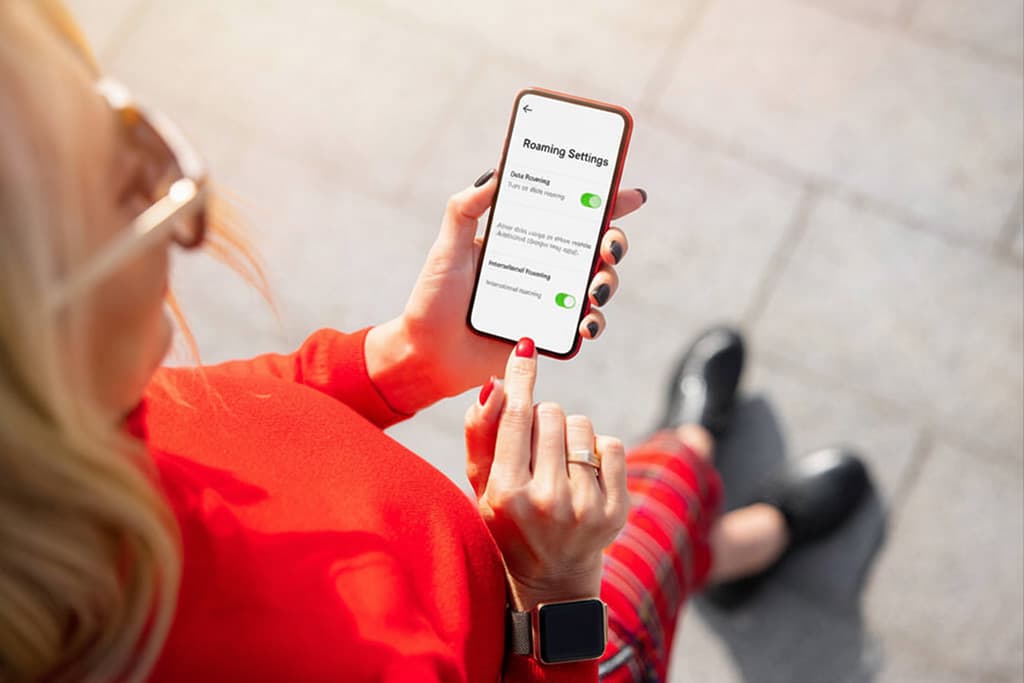
If you are searching for how to activate roaming on iPhone, the fastest path is simple: go to Settings, tap Cellular or Cellular Data, open Cellular Data Options, and switch Data Roaming on for the line you want to use abroad.
That setting is easy to find. Many travelers still get caught by the same problems.
You may turn on roaming for the wrong SIM or leave your home carrier as the data line. Some travelers assume their iPhone will work internationally without an active roaming plan or travel eSIM.
At Roamix, this comes up often with travelers who want mobile data to work the moment they land. The key is not just turning on Data Roaming, but turning it on for the correct line and pairing it with the right travel plan so you do not face surprise charges.
Key Takeaways
- You can activate roaming on iPhone in a few taps through Cellular settings.
- Dual SIM and eSIM setups need extra care because the wrong line can block data.
- A travel eSIM can help you stay connected without traditional roaming fees.
How To Activate Roaming In iPhone
Turning on roaming on iPhone takes less than a minute if you know which menu to open. The exact path depends on whether you use a single SIM, one eSIM, or a Dual SIM setup with two lines.
Turn On Data Roaming On iPhone
On most iPhones, you can enable roaming with these steps:
- Open Settings.
- Tap Cellular or Cellular Data.
- Tap Cellular Data Options.
- Turn Data Roaming on.
If you are traveling internationally, this setting allows your iPhone to use cellular data on a partner network outside your normal coverage area.
A common mistake is turning on roaming before you have any travel plan at all. If your carrier charges high international rates, that can get expensive fast.
Find Cellular Data Options On Single SIM iPhones
If your iPhone uses one physical SIM or one eSIM only, the menu is direct:
Settings > Cellular > Cellular Data Options > Data Roaming
If you do not see the option right away, make sure Cellular Data is enabled first. On some iPhones, the menu label shows as Cellular Data instead of Cellular, depending on region and software version.
Enable Roaming On Dual SIM Or Dual eSIM iPhones
If your iPhone has Dual SIM or Dual eSIM, you need to choose the right line first:
- Open Settings.
- Tap Cellular or Cellular Data.
- Under SIMs, tap the number or plan you want to use abroad.
- Tap Cellular Data Options.
- Turn Data Roaming on.
This matters a lot in real travel use. If your Roamix eSIM is meant for data abroad, turn on Data Roaming for the Roamix line, not your home carrier line.
How To Confirm Roaming Is Active
After you arrive, check four things:
- Data Roaming is on for the correct line
- Cellular Data is assigned to the correct SIM or eSIM
- Your iPhone shows signal bars, LTE, 4G, or 5G
- Mobile data works when Wi-Fi is off
The quickest real-world test is to disable Wi-Fi and load a map or website. If nothing opens, your data line or roaming setting is usually the issue.
What Data Roaming Means On iPhone
Data roaming means your iPhone uses a cellular network that is not part of your usual home network. This often happens when you travel to another country and your phone connects to a partner carrier.
The Difference Between Data Roaming And Voice Roaming
Data roaming covers internet use, such as maps, email, ride apps, and social media. Voice roaming applies to phone calls on another network.
Many travelers care most about data roaming because it affects everyday apps. Even if you rarely make calls, your iPhone still needs data for navigation, messages, and booking confirmations.
When iPhone Uses Another Network Abroad
When you land in another country, your iPhone may connect to a local partner network automatically. If Data Roaming is off, your phone may show signal for calls and texts in some cases, yet mobile data may not work.
That is why your phone can look connected while apps still fail to load. I have seen this confuse travelers more than almost anything else.
Why Roaming Charges Happen
Roaming charges happen when your home carrier bills you for using a foreign network. Some plans include international roaming, while others charge by day, by MB, or by pass.
Background app refresh, cloud photo uploads, and video apps can burn through expensive roaming data in a short time.
Choose Between Carrier Roaming Plans And A Travel eSIM
You have three common ways to stay connected abroad: your carrier’s roaming plan, a local SIM card, or a travel eSIM. The best option depends on trip length, cost, and whether you want to keep your usual number active.
When A Carrier Roaming Plan Makes Sense
A carrier roaming plan can make sense if:
- You want one bill from your home carrier
- Your trip is very short
- Your carrier includes international roaming in your existing plan
- You need voice and text service through your usual number with no setup changes
This is often easiest for a quick business trip. It is less ideal when daily roaming fees add up over a week or two.
When A Travel eSIM Is The Better Option
A travel eSIM is often the better choice when you want lower roaming costs and a quick setup before departure. You install it once, keep it on your phone, and use prepaid data abroad without swapping a physical SIM card.
That is especially useful on iPhones with Dual SIM support. You can keep your home line active for calls and texts, and use your travel eSIM for data.
Local SIM Card Vs eSIM Vs International Roaming
| Option | Best For | Main Drawback |
|---|---|---|
| Carrier roaming | Short trips, convenience | Often expensive |
| Local SIM card | Longer stays, local rates | Requires SIM swap |
| Travel eSIM | Most travelers, easy setup | Needs eSIM-compatible unlocked phone |
How Roamix Helps Travelers Avoid Roaming Charges
Roamix gives you prepaid travel eSIM plans for 190+ countries and regions. You can use mobile data abroad without relying on expensive carrier roaming.
You receive your QR code quickly, install the eSIM before departure, and activate when you connect at your destination. If you travel through several countries, a regional Roamix plan can be easier than managing multiple local SIMs.
You also keep access to your dashboard for data usage, top-ups, and QR code details.
Set Up Your iPhone For Travel Before You Leave
A few minutes of prep before your flight can save you a lot of frustration after landing. The biggest wins are checking device compatibility, installing your eSIM early, and making sure the right line handles cellular data.
Check If Your iPhone Is eSIM Compatible And Unlocked
Most iPhones released after 2018 support eSIM. Your iPhone also needs to be carrier-unlocked if you want to use a travel eSIM from another provider.
If your phone is locked, the eSIM may install but still fail to connect. It is important to check this before purchase, not at the airport.
Install Your Travel eSIM Before Departure
Install your travel eSIM while you still have stable Wi-Fi at home, in your hotel, or before boarding. That gives you time to name the line clearly, such as “Roamix Travel,” and avoid setup stress later.
With Roamix, your QR code and install link are usually delivered within 60 seconds. That makes it easy to set up before the trip starts.
Keep Your Home Number Active With Dual SIM
If your iPhone supports Dual SIM, you can leave your home line on for calls and texts while using a travel eSIM for cellular data. This setup works well if you still need banking texts, airline alerts, or calls to your regular number.
For cost control, many travelers switch off roaming on their home line and leave it active only for voice and SMS.
Choose The Correct Line For Cellular Data
This is one of the most important travel settings on iPhone:
- Open Settings
- Tap Cellular
- Tap Cellular Data
- Select your travel eSIM as the data line
If your home SIM stays selected for cellular data, your iPhone may keep using your carrier’s international roaming instead of your prepaid eSIM plan.
How To Check Data Usage And Control Costs Abroad
Checking usage during your trip helps you avoid running out of data or paying more than expected. iPhone gives you basic usage tools, and smart settings changes can cut waste right away.
How To Check Data Usage On iPhone
To check data usage:
- Open Settings
- Tap Cellular or Cellular Data
- Look under Cellular Data for current usage
You can also scroll down to see how much data each app has used. This is useful when one app is draining far more data than you expected.
Ways To Reduce Cellular Data Use While Traveling
Try these practical steps:
- Turn off Wi-Fi Assist
- Disable Background App Refresh for nonessential apps
- Turn off automatic app updates over cellular
- Use offline maps
- Download music, shows, and guides before your trip
- Limit cloud photo syncing on mobile data
Video apps are usually the biggest data users. Short-form video and automatic media downloads can eat through a plan quickly.
How Roamix Top-Ups And Usage Alerts Help
Roamix helps you control roaming costs with prepaid plans and usage alerts at 50% and 80%. You can add instant top-ups from your account dashboard.
There are no automatic overage charges. You are not billed unexpectedly after you pass a limit.
Fix Roaming Problems On iPhone
Most roaming issues on iPhone come from a few settings. The fix is usually simple once you check the active line, Data Roaming switch, and network status.
No Service Or SOS Only After Arrival
If your iPhone shows No Service or SOS Only:
- Turn Airplane Mode on for 30 seconds, then off
- Restart the iPhone
- Go to Settings > Cellular and confirm the correct line is on
- Open that line’s Cellular Data Options and make sure Data Roaming is on
- Check Date & Time and set it to Set Automatically
Sometimes the phone just needs a fresh network registration after landing.
Data Roaming Is On But Mobile Data Is Not Working
If roaming is on and apps still do not load:
- Turn off Wi-Fi to test cellular only
- Confirm Cellular Data is enabled
- Make sure your travel plan is active in the destination country
- Check whether the wrong SIM is selected for data
- Try manual network selection if automatic connection fails
This can happen when the eSIM is installed, but the home line still controls data.
Wrong SIM Line Selected For Data
On Dual SIM iPhones, this is a very common problem. Go to Settings > Cellular > Cellular Data and choose the travel eSIM.
If you use Roamix, label your eSIM clearly during setup. Names like “Primary,” “Secondary,” or “Business” are easy to mix up after a flight.
When To Contact Roamix Support Or Your Carrier
Contact your carrier if you are using its international roaming plan and cannot connect. Contact Roamix support if your Roamix eSIM is installed, selected for data, roaming is on, and service still does not work.
Roamix offers 24/7 human support. This is especially useful when you are already abroad and need a fast answer.
Frequently Asked Questions
Where can I find the Data Roaming setting in iPhone Settings?
You can find it under Settings > Cellular > Cellular Data Options on a single SIM iPhone. On a Dual SIM or Dual eSIM iPhone, go to Settings > Cellular, tap the line you want to use, then open Cellular Data Options.
How do I enable international roaming on my iPhone for travel?
Open Settings, tap Cellular, select your travel line if needed, tap Cellular Data Options, and switch Data Roaming on. You also need an active carrier roaming plan or travel eSIM for mobile data to work abroad.
How do I turn on roaming on an iPhone 11?
On an iPhone 11, go to Settings > Cellular > Cellular Data Options and enable Data Roaming. If your iPhone 11 uses Dual SIM, choose the correct line first before turning roaming on.
How do I turn on roaming on an iPhone 13?
On an iPhone 13, open Settings, tap Cellular, then choose Cellular Data Options and turn on Data Roaming. If you use a travel eSIM, make sure that eSIM is also selected as the Cellular Data line.
How do I turn on roaming on an iPhone 15?
On an iPhone 15, the steps are the same: Settings > Cellular > Cellular Data Options > Data Roaming. If you use Dual eSIM, tap the correct plan first, then enable roaming for that line.
How do I enable eSIM roaming on my iPhone?
Go to Settings > Cellular and tap your eSIM plan. Open Cellular Data Options and turn on Data Roaming. Set the eSIM as your active data line so your iPhone uses that prepaid travel plan instead of your home carrier’s roaming service.
More in How-to

How to Unlock Your Phone for an International eSIM
The most common reason a travel eSIM fails to activate is that the phone is still carrier-locked. Here is how to check your lock status, request an unlock from AT&T, Verizon, or T-Mobile, and get your phone ready before you fly.
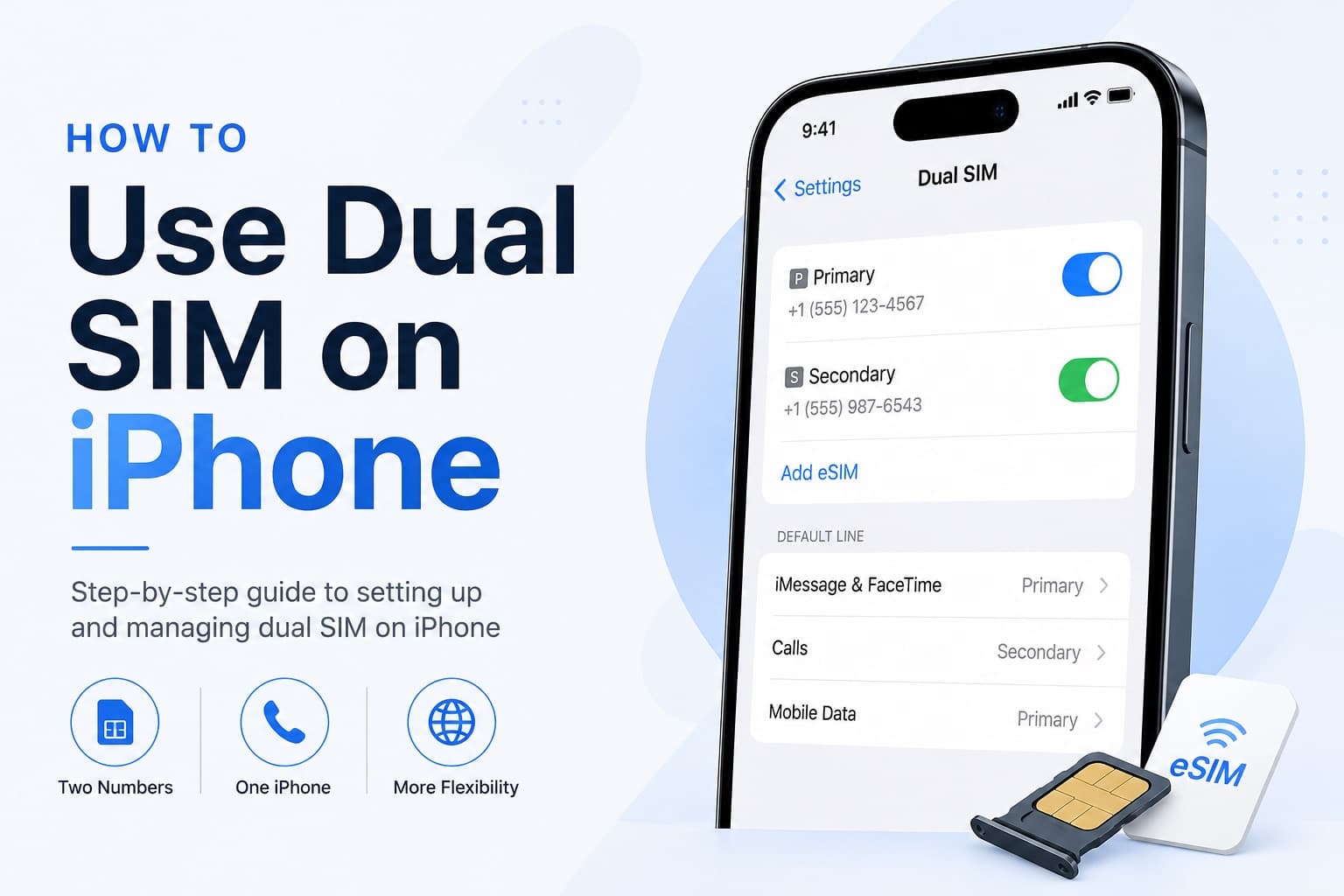
How to Receive SMS and Bank Texts Abroad Using a Travel eSIM
A properly configured dual-SIM iPhone lets you receive bank texts and 2FA codes on your home number while running affordable data through a travel eSIM. This guide walks you through every setting you need to configure before you fly.
Fixing eSIM Network Not Available: Multi-Network Switching vs QCI Priority
The eSIM network not available error usually comes down to one of three causes: no supported partner network in range, an activation issue, or a settings problem blocking cellular data. This guide explains how to diagnose each one and fix it fast.