Can You Use an eSIM on a Laptop or PC? Guide for Digital Nomads
On this page
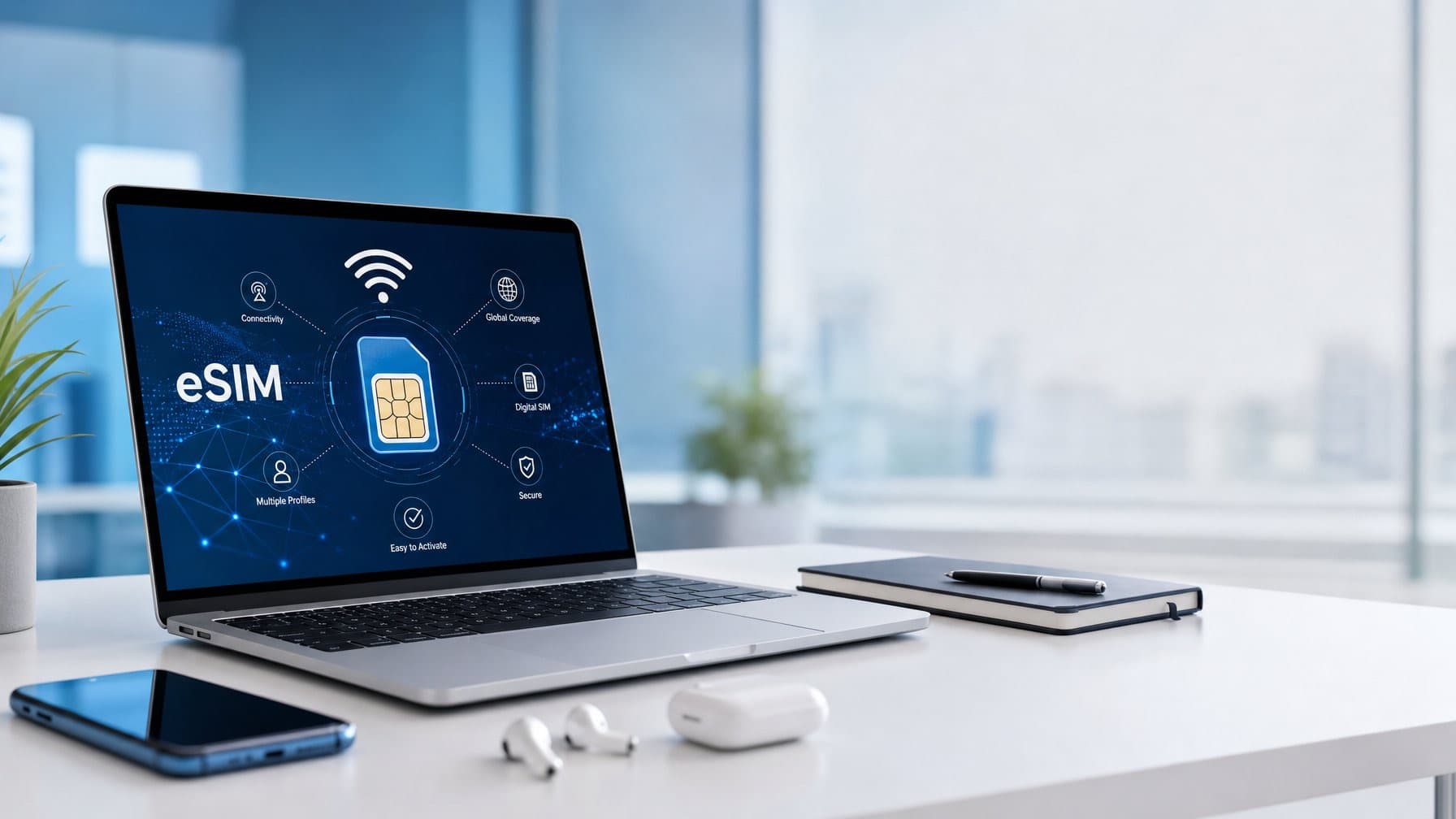
If you travel with a laptop, you may wonder if you can skip the hotel Wi-Fi hunt and connect your PC directly over cellular using an eSIM.
The short answer is yes, but only on a specific subset of Windows laptops built with a wireless WAN module and embedded SIM support.
For most travelers, your phone remains the smarter link in the chain.
An eSIM, or embedded SIM, lets a device connect to a cellular data plan without a physical SIM card.
While smartphones have made this seamless, laptop support is far more limited and dependent on hardware.
Whether you are a digital nomad or a business traveler, knowing your setup options in advance matters.
Roamix, a travel eSIM built specifically for international travelers, covers 190+ countries.
It includes unlimited hotspot tethering on all standard plans, making it a practical foundation for any laptop-based remote work setup regardless of your machine's built-in cellular support.
Which Laptops And PCs Can Connect Over Cellular
Not every laptop can connect to a cellular network.
Built-in cellular support requires specific hardware, and the distinction between Wi-Fi-only and WWAN-capable machines is decided at the factory.
What Built-In Cellular Support Usually Looks Like On Windows PCs
A Windows laptop with cellular connectivity includes a WWAN module, sometimes called a mobile broadband card, installed on the motherboard.
This is separate from the Wi-Fi chip.
When this hardware is present, Windows will show a Cellular option under Settings > Network & Internet.
The eSIM chip is an eUICC, a small embedded component that stores digital profiles instead of requiring a physical nano-SIM.
On compatible machines, you can load carrier profiles directly through Windows Settings.
These machines typically support 4G LTE, and newer models are beginning to ship with 5G-capable modems.
Common Business Laptop Lines That May Offer WWAN Or eSIM
eSIM-capable laptops are usually business or premium productivity devices.
Lines worth checking include:
- Microsoft Surface Pro and Surface Go series (select configurations)
- Lenovo ThinkPad X1 Carbon and ThinkPad X1 Yoga (certain SKUs)
- HP EliteBook and HP Spectre x360 with LTE options
- Dell Latitude series with optional WWAN modules
- ASUS ExpertBook series with LTE configurations
The key phrase is select configurations.
Manufacturers often sell the same model in Wi-Fi-only and LTE/eSIM variants.
A ThinkPad X1 Carbon purchased without the WWAN option will not gain cellular capability through a software update.
Why MacBooks Are Not A Direct Cellular eSIM Option
MacBooks do not include built-in cellular radios.
No current MacBook model, including the M-series lineup, supports direct connection to a cellular data plan via eSIM or otherwise.
If you work on a Mac, tethering from your iPhone or another eSIM-enabled device is your only path to cellular data on the road.
How To Check If Your Device Is Compatible
The fastest way to confirm eSIM support on a Windows PC takes under two minutes inside Settings.
There are a few specific indicators that separate genuine eSIM hardware from machines that simply have a SIM card slot without full eSIM profile management.
Where To Look In Windows Settings
Open Settings > Network & Internet and look for a Cellular page in the left menu.
If Cellular appears, your device has some form of cellular hardware installed.
Go to Cellular and look for Use this SIM for cellular data.
Open the dropdown.
If you see an eSIM or SIM2 option alongside any physical SIM entries, your device supports eSIM profiles.
To confirm an eSIM profile is already installed, navigate to Settings > Network & Internet > Cellular > eSIM profiles and check for any listed entries.
Signs Your PC Has eSIM Support
One reliable indicator is the presence of an EID, which stands for eSIM Identifier.
This is the unique hardware address of the embedded SIM chip.
You can find it under Settings > Network & Internet > Cellular, typically listed alongside IMEI information.
If no EID appears, the device almost certainly lacks eSIM hardware.
Other signs include:
- A Manage eSIM profiles option visible in Cellular settings
- A Search for available profiles button when adding a new profile
- A prompt asking to share your EID when visiting a carrier activation page
When Carrier Lock Or Hardware Limits Get In The Way
Even when a laptop has the hardware, two obstacles can block eSIM use.
Some devices are sold with a carrier-locked WWAN module, meaning the embedded SIM will only activate profiles from that specific operator.
Enterprise or managed devices may have eSIM profile management locked by organizational policy, preventing you from adding, switching, or deleting profiles through Settings.
How Setup Works On A Windows PC
Setting up an eSIM profile on a compatible Windows PC follows a logical sequence through Settings.
The exact options available depend on your Windows version and which methods your chosen carrier supports.
Adding A Profile With A QR Code Or Activation Code
Navigate to Settings > Network & Internet > Cellular > eSIM profiles, then select Add profile.
Windows gives you the option to scan a QR code using your device's camera or to enter an activation code manually.
Once scanned or entered, Windows downloads the profile and prompts you to confirm before adding it to the device.
Your carrier may ask for your EID and IMEI to verify the device.
Only share these identifiers with trusted carrier websites.
Switching Between Installed Profiles
If you have multiple eSIM profiles installed, switching is straightforward.
Go to eSIM profiles, select the profile you want to stop using, and choose Stop using.
Then select your preferred profile and choose Use.
This lets you move between a work data plan and a travel data plan without reinstalling anything.
Deleting a profile is permanent in most cases.
If you remove an eSIM profile, you may need to contact the carrier to re-provision it, so only delete profiles you are certain you will not need again.
What Changed After Mobile Plans App Support Ended
Windows previously offered the Mobile Plans app as a centralized marketplace for eSIM data plans.
Microsoft has scaled back this integration, and the app is no longer a reliable method for discovering or activating new plans on all devices.
Carrier website activation and QR code or activation code methods are now the standard paths for adding eSIM profiles on Windows PCs.
The steps above through Settings remain the core approach.
Why Phone Tethering Is The Best Workaround For Most Travelers
For most digital nomads, your laptop probably does not have built-in eSIM support.
Even if it does, the carrier options for PC eSIM plans are limited compared to the travel eSIM market available for smartphones.
Phone tethering closes that gap immediately, with no hardware requirements beyond a phone you already carry.
Why A Travel eSIM On Your Phone Is More Flexible Than Waiting For PC Support
Travel eSIM plans for smartphones are available in far greater variety, covering more countries, more data sizes, and more competitive pricing than carrier plans for WWAN laptops.
You can buy a country-specific plan for a single trip or a regional multi-country plan for a two-week itinerary, all from your phone within minutes of landing.
A smartphone eSIM works across 4G LTE and 5G networks where supported, without depending on whether your laptop manufacturer partnered with a specific carrier in that country.
How Hotspot Sharing Helps With Remote Work On The Road
When you enable hotspot on your phone, your device becomes a portable Wi-Fi router.
Your laptop connects to that local network, and all traffic routes through your phone's cellular connection.
For remote work, this means Zoom calls, file uploads, and VoIP tools like Google Meet or Microsoft Teams can all run over your eSIM data without ever touching public Wi-Fi.
The setup takes about thirty seconds.
Most travelers already know how to enable a personal hotspot on iPhone or Android, and the connection behaves like any other Wi-Fi network from the laptop's perspective.
When Tethering Beats Hotel Wi-Fi And Public Networks
Hotel Wi-Fi is shared across many guests, causing congestion during peak hours.
Airport and cafe networks carry real security risks, especially for remote workers handling sensitive files or logging into work accounts.
Tethering from your phone gives you a private, encrypted cellular connection that nobody else on the floor is sharing.
For a quick Zoom check-in or an hour of focused work between flights, a reliable 4G LTE or 5G connection through your phone consistently outperforms crowded public networks.
Why Roamix Fits Remote Work And Travel Better
Roamix was built with travelers and remote workers in mind.
Coverage across 190+ countries with 4G LTE and 5G where local infrastructure allows means you are rarely starting from scratch in a new destination.
Unlimited Hotspot Tethering Without Extra Fees
Many travel eSIM providers either block hotspot entirely or restrict it to a separate, more expensive plan tier.
Roamix includes unlimited hotspot tethering on all standard data plans at no extra cost.
You can share your cellular data plan with your laptop, tablet, or a travel companion's device without worrying about a hidden surcharge or a throttled cap kicking in mid-call.
For digital nomads running Zoom calls or uploading large files through a laptop hotspot, this distinction matters significantly.
Global IP Breakouts For Lower-Latency Calls And Better Speeds
One technical advantage Roamix offers is global IP breakout routing.
Rather than routing your data traffic back through a server in another country, Roamix connects you to the nearest local network point.
This reduces latency noticeably, which translates to smoother VoIP calls, faster page loads, and more stable video conferencing in real-world conditions.
If you are running back-to-back client calls across time zones or transferring files while moving between cities, that latency reduction is a practical benefit.
Multi-Country Plans For Cross-Border Trips And Teams
Roamix offers regional eSIM plans covering multiple countries under a single purchase. This includes a Europe plan covering 30+ countries and a global plan reaching 130+ destinations.
For digital nomads moving between countries within a trip, this eliminates the need to buy and manage separate plans for each border crossing. Business travelers and teams can also take advantage of corporate travel programs and bulk plan pricing.
With Roamix, everyone can stay on a managed, consistent connectivity setup without the chaos of individually sourced SIM cards.
Choosing The Right Setup For Your Trip
Your ideal connectivity setup depends on what hardware you are already carrying. A quick check before departure saves significant frustration once you land.
Best Option If Your Windows Laptop Has Built-In Cellular
If your device confirms eSIM support through the Settings check and displays an EID, you can load an eSIM profile directly into Windows. Look for a carrier that offers PC-compatible eSIM plans for your destination and follow the QR code or activation code path through Settings > Network & Internet > Cellular > eSIM profiles.
Managing eSIM profiles on a laptop is more rigid than on a phone. Profiles are tied to the device, deletion can be permanent, and carrier support for PC eSIM is still narrower than the phone eSIM market.
Best Option If Your Laptop Does Not Support eSIM
Buy a travel eSIM for your smartphone and use your phone as a hotspot. This works on any laptop, regardless of operating system or hardware.
A Roamix plan with unlimited hotspot tethering means your laptop gets a private, fast cellular connection in 190+ countries without any additional fees or hardware. You can top up data instantly from your Roamix dashboard and receive usage alerts at 50% and 80%.
Switch between country or regional plans as your itinerary changes. Roamix makes it easy to stay connected wherever you go.
Simple Pre-Trip Checklist Before You Leave
- Check Settings > Network & Internet for a Cellular page and EID (Windows only).
- Confirm your device is carrier-unlocked if using a built-in WWAN module.
- Purchase your travel eSIM plan and receive your QR code before departure.
- Install the eSIM profile over Wi-Fi at home so you are ready to connect on arrival.
- Enable hotspot on your phone and test the laptop connection before your flight.
- Save your Roamix account login and QR code in an accessible place in case reinstallation is needed.
Frequently Asked Questions
Which laptops support eSIM for cellular connectivity?
eSIM-capable laptops are typically business or premium productivity devices. Lines to check include the Microsoft Surface Pro, Lenovo ThinkPad X1 Carbon, HP EliteBook, Dell Latitude, and ASUS ExpertBook, but only specific SKUs with the WWAN module included. Wi-Fi-only models cannot be upgraded via software.
Can I use an eSIM on a MacBook?
No. No current MacBook model, including the M-series lineup, supports direct connection to a cellular data plan via eSIM. Mac users must tether from an iPhone or another eSIM-enabled device to get cellular internet on their laptop while traveling.
How do I check if my Windows laptop supports eSIM?
Go to Settings, then Network and Internet, and look for a Cellular page. If Cellular appears, navigate to it and check for an EID number, which is the hardware address of the embedded SIM chip. No EID means the device almost certainly lacks eSIM hardware.
Is phone tethering better than a built-in laptop eSIM for travel?
For most travelers, yes. Travel eSIM plans for smartphones cover more countries, offer more data sizes, and are priced more competitively than carrier plans for WWAN laptops. Tethering from your phone works on any laptop regardless of operating system and takes about 30 seconds to set up.
More in Digital Nomads
Best eSIM for Digital Nomads Using iOS and Android in 2026
Digital nomads need more from an eSIM than a tourist does: multi-country coverage, top-up without reinstalling, hotspot for laptops, and support at 3am. Here's how Roamix compares across iPhone and Android for long-term travel.
What Makes a Travel Tech Platform Trustworthy for Remote Workers?
Remote workers need connectivity that won't fail during client calls, no billing surprises, and support that's available in their time zone. Here's what to look for in a travel tech platform — and why Roamix meets each of those criteria.