On this page
Planning your first international trip and realizing you need to sort out mobile data is one of those tasks that sounds simple until you're staring at an "Invalid SIM" error in a foreign airport. The single most common reason a travel eSIM fails to activate is not a problem with the eSIM provider; it's that the phone is still carrier-locked. Getting this sorted before you leave takes less than ten minutes and saves you a lot of frustration on arrival.
A carrier lock is a software restriction that ties your phone to a specific network. Even though your device physically supports eSIM, a lock means it will only accept profiles from the original carrier. Switching to a travel eSIM from another provider, even briefly for one trip, requires the device to be unlocked first. The eSIM format changes nothing about this rule.
International roaming through your home carrier is the alternative, but the cost difference is stark. Traditional carrier roaming often runs $10 to $15 per day, while travel eSIM plans from providers like Roamix typically cost a fraction of that, with rates starting as low as $2 for 1 GB of data in many destinations. The savings become especially significant on longer trips or multi-country routes.
This guide walks you through exactly how to check your lock status, how to request an unlock from your carrier, and what to do once the restriction is lifted. Once your phone is ready, you can head to Roamix and pick up a plan for 200+ countries, delivered to your inbox in under 60 seconds.
What Carrier Lock Means Before You Travel
Understanding carrier lock is the foundation for everything that follows. A locked phone will silently block any foreign or third-party network profile, while an unlocked phone accepts any compatible eSIM from any carrier worldwide.
Carrier-Locked Vs Unlocked Phones
A carrier-locked phone, sometimes called a SIM-locked or network-locked device, is programmed at the software level to only accept service from the carrier that sold it. When you buy a subsidized iPhone from AT&T or a Galaxy on a T-Mobile installment plan, the device typically ships with this restriction applied.
An unlocked phone carries no such restriction. It accepts eSIM profiles and physical SIM cards from any compatible network, anywhere in the world. Phones purchased outright, or bought directly from Apple or Samsung without a carrier subsidy, are usually unlocked from the start.
Why eSIM Does Not Bypass A Network Lock
This is the most important misconception to clear up before any international trip. eSIM is simply the delivery mechanism for a carrier profile. Instead of a physical card, the profile is downloaded digitally. The underlying network lock still applies regardless of how the profile arrives.
If your phone is locked to Carrier A, it will only accept Carrier A's eSIM. Scan a QR code from a travel eSIM provider, and the download may technically complete, but the profile will not activate. The lock operates at the device level, not the SIM level.
How Locked Phones Affect Travel eSIM Use
In practice, a locked phone will either refuse to add a third-party eSIM profile entirely or will install the profile but show no service once you land. You may see error messages referencing activation failure, network registration issues, or SIM not supported.
Buying a travel eSIM before confirming your unlock status wastes both money and time. Most reputable travel eSIM providers, including Roamix, recommend verifying your device is unlocked before purchase. Some offer refund windows for uninstalled plans, but the smarter move is to check first.
How To Check If Your Phone Is Unlocked
Checking your lock status takes under two minutes and requires no special tools. The most reliable methods are built directly into your phone's settings, though your IMEI and EID numbers can provide additional confirmation when needed.
Check Carrier Lock On iPhone
On iPhone, the fastest method is:
- Open Settings
- Tap General
- Tap About
- Scroll to Carrier Lock or Network Provider Lock
If the field reads "No SIM restrictions", your iPhone is fully unlocked and ready to accept any compatible eSIM. If it shows a carrier name, the device is still locked to that network.
This check works even if you do not have a SIM card installed. It reflects the device's software state, not what's currently inserted.
Check Lock Status On Android
Android does not have a single universal label equivalent to iPhone's Carrier Lock field. Your options are:
- Call your carrier directly and ask for the lock status of your IMEI
- Insert a SIM card from a different carrier and see if it registers on the network
- Attempt to add an eSIM from a different provider: if it fails at the activation step on a compatible device, a lock is the likely cause
- Check Settings on Samsung devices: Settings > Connections > SIM Manager > SIM Lock Status on some models
The lack of a standardized label makes Android checks slightly less straightforward, but calling your carrier with your IMEI is always a reliable fallback.
Use IMEI And EID To Confirm Device Status
Your IMEI is a 15-digit number that uniquely identifies your device. Your EID is the identifier tied specifically to your eSIM chip. Both are useful when contacting your carrier or using an unlock portal.
To find them:
- iPhone: Settings > General > About (scroll down)
- Android: Settings > About Phone, or dial
*#06#on the keypad
Some carriers allow you to enter your IMEI into their online unlock portal to check eligibility automatically. Having both numbers ready speeds up the unlock request process.
Common Signs Your Device Is Still Restricted
Even after purchasing and installing a travel eSIM, a carrier lock can show up in several ways. Knowing what these errors actually mean helps you diagnose the issue quickly rather than assuming the eSIM itself is faulty.
eSIM Won't Activate Or Install
If an eSIM profile downloads but the plan never activates, or if setup stalls at the "connecting to network" or "registering" step, a carrier lock is one of the first things to rule out. This is especially true if your home carrier's eSIM or SIM card works fine on the same device.
A quick test: check whether your original carrier's service is still functioning normally. If it is, and only the new eSIM profile is failing, the pattern points directly at a device restriction.
Invalid SIM And SIM Not Supported Errors
"Invalid SIM," "SIM not supported," and "No SIM" messages that appear after installing a third-party eSIM are classic signs of a carrier lock. These messages mean the device recognized the profile but refused to authorize it.
It is worth noting that "No SIM" can also appear on eSIM-only iPhones (iPhone 14 and later in the US) when no eSIM is installed, which is normal. The concern is when you see it after a successful install.
When The Problem Is Compatibility Instead Of A Lock
Not every eSIM setup failure is a lock issue. Some devices, particularly older models or phones purchased outside the US, may not be compatible with certain eSIM standards or band frequencies. Outdated firmware can also cause activation failures that mimic lock errors.
Before assuming a carrier lock, confirm your device appears on your eSIM provider's compatibility list and that your operating system is up to date. If compatibility checks out and errors persist, the lock is the more likely culprit.
How To Request An Unlock From Your Carrier
The unlock process is straightforward once your account meets the eligibility requirements. All major US carriers provide an online portal or in-app option for submitting a request, and most complete the process within 24 to 48 hours. Common prerequisites include having the device fully paid off, the account in good standing, and the phone not reported lost or stolen.
What You Usually Need Before Submitting A Request
Across all major carriers, the standard checklist looks like this:
- Device paid off in full (no remaining installment balance)
- Account in good standing (no outstanding balance or delinquency)
- Device not flagged as lost or stolen
- Minimum time on network (varies by carrier, typically 40 to 60 days for postpaid)
- IMEI number of the device you want unlocked
Having your IMEI ready before you start any unlock request speeds things up considerably. You can find it at Settings > General > About on iPhone or by dialing *#06# on Android.
AT&T Unlock Request Basics
AT&T handles unlock requests through its Device Unlock Portal at att.com. You'll enter your IMEI and account details, and the system checks eligibility automatically. Key requirements include:
- Device purchased at least 60 days ago
- Device fully paid off or lease completed
- Account active and in good standing
- Device not reported lost or stolen
Many eligible AT&T devices auto-unlock once all criteria are met, so it's worth checking the portal even before formally submitting a request.
Verizon And T-Mobile Unlock Basics
Verizon is the most straightforward of the three. Most postpaid devices auto-unlock after 60 days from purchase or activation, provided the device has no fraud flags or unpaid balance. No manual request is needed in most cases.
T-Mobile requires the requesting line to have been active for at least 40 days, with financed devices fully paid off. Many T-Mobile Android phones include a built-in Device Unlock option in the settings menu or through the T-Life app, which lets you request a permanent unlock or a temporary travel unlock directly on the device.
What To Do After Your Phone Is Unlocked
Once your carrier confirms the unlock, a few quick steps ensure everything is working before you head to the airport. Getting this done on Wi-Fi at home is far easier than troubleshooting at the gate.
Verify The Unlock Worked
On iPhone, return to Settings > General > About and confirm the Carrier Lock field now reads "No SIM restrictions." This is the definitive check. If it still shows a carrier name, the unlock may not have propagated yet; wait a few hours and restart the device before checking again.
On Android, the most practical test is attempting to add a data eSIM from a third-party provider or inserting a SIM from a different carrier. If it registers on the network, the unlock is complete.
Set Up A Travel eSIM Before Departure
Installing your travel eSIM before you leave is the smartest move. You have stable Wi-Fi, time to troubleshoot if anything goes wrong, and no pressure. The eSIM profile installs on the device, but the data plan typically does not begin consuming your allowance until the phone connects to a supported network at your destination.
On iPhone: Settings > Cellular > Add eSIM, then scan the QR code or use the provider's activation link. On Android: Settings > Network & Internet > SIMs > Add eSIM, then follow the prompts. Roamix sends an instant activation link and QR code by email within 60 seconds of purchase, and everything is also accessible from the account dashboard.
Keep Your Home Number Active With Dual SIM
One of the main advantages of eSIM for travelers is dual-SIM functionality. You can keep your home SIM active for calls and texts while routing all mobile data through your travel eSIM. This means your family and colleagues can still reach you on your regular number without you incurring international roaming charges on that line.
On most modern iPhones and Android devices, you set which line handles mobile data in your cellular settings. Label your lines clearly, such as "Home" and "Travel Data," to avoid accidentally activating the wrong plan. Our guide on how to use dual SIM on iPhone covers the full setup.
Choosing A Travel Plan Without Roaming Surprises
After your phone is unlocked and your eSIM is installed, the last piece is choosing the right data plan. The type of trip you're taking, specifically whether you're visiting one country or crossing multiple borders, shapes which plan structure makes the most sense.
When A Regional Plan Makes More Sense Than A Country Plan
A country-specific plan is the right call for a single-destination trip where you know exactly where you'll be. It typically offers the best per-GB value for that country and connects you to the strongest local carrier available.
A regional plan makes far more sense if your itinerary crosses borders. Buying individual country plans for a trip across four European countries means managing four separate eSIMs, four QR codes, and four sets of data balances. A single regional plan covering 30+ countries, like the Europe plan from Roamix, eliminates that friction entirely.
What To Look For In eSIM Providers
When comparing eSIM providers, the key factors are:
- Coverage depth: does the provider use strong local carrier partnerships, not just one fallback network?
- Pricing transparency: are all fees shown upfront, with no automatic overage charges?
- Data top-up options: can you add data mid-trip without reinstalling the eSIM?
- Support availability: is there real human support if something goes wrong at midnight in a different time zone?
- Hotspot/tethering: is it included, or charged as an extra?
Roamix includes hotspot tethering on all standard plans at no extra cost and provides 24/7 human support, which matters most when you're troubleshooting in an unfamiliar country.
Why Travelers Move Away From Traditional Roaming
Traditional carrier roaming is convenient in that you do nothing. Your phone connects automatically. The problem is the cost, often $10 to $15 per day, which adds up to $70 to $105 on a week-long trip just for data. Travelers using travel eSIM plans typically save 50 to 85 percent compared to those rates.
Beyond cost, carrier roaming often routes your data internationally through your home network's infrastructure before it reaches local servers, adding latency. Providers that use local IP breakouts, connecting you to the nearest local server instead, deliver noticeably faster speeds in everyday use. See how the two approaches compare in our data roaming vs. eSIM guide.
Frequently Asked Questions
How can I check if my phone is carrier-unlocked and ready to use an eSIM?
On iPhone, go to Settings, then General, then About, and find the Carrier Lock or Network Provider Lock field. If it says No SIM restrictions, your phone is unlocked. On Android, the most reliable method is calling your carrier with your IMEI, or trying to activate an eSIM from a different provider.
What steps do I follow to request a carrier unlock for an iPhone?
Contact the carrier your iPhone is locked to through its online unlock portal or customer support. You will need your IMEI from Settings, General, About, and the device must be fully paid off with the account in good standing. Once approved, restart your iPhone and confirm Carrier Lock reads No SIM restrictions.
How do I request an unlock from AT&T to use a travel eSIM?
Visit the AT&T Device Unlock Portal at att.com and enter your IMEI and account details. AT&T checks eligibility automatically: the device must have been purchased at least 60 days ago, be fully paid off, and not be reported lost or stolen. Approval typically takes up to 24 to 48 hours.
Can I use an eSIM on a T-Mobile phone that is still carrier-locked?
Only T-Mobile's own eSIM will activate on a locked T-Mobile device. Any third-party or travel eSIM profile from another provider will fail to connect until the phone is unlocked. T-Mobile requires at least 40 days of active service and the device to be fully paid off before it approves an unlock request.
How do I unlock a Verizon phone so it can use an eSIM from another carrier?
Verizon automatically unlocks most postpaid devices 60 days after purchase or activation, with no manual request needed, provided there are no fraud flags or outstanding balance. If your phone has been active for more than 60 days and still shows as locked, contact Verizon support with your IMEI to resolve it.
How can I unlock a Samsung Android phone to use an eSIM on a different network?
First confirm your Samsung model supports eSIM, since not all do. Then contact your carrier with the IMEI, found by dialing *#06#, and request an unlock once you meet the requirements, including full payment and minimum account tenure. Some Samsung phones on T-Mobile also offer a built-in Device Unlock option in Settings.
More in How-to

How to Use iMessage Abroad Without Getting Charged
iMessage itself has no international fees because it runs over the internet. What you pay depends on your connection, your carrier's roaming policy, and whether your iPhone silently falls back to SMS.
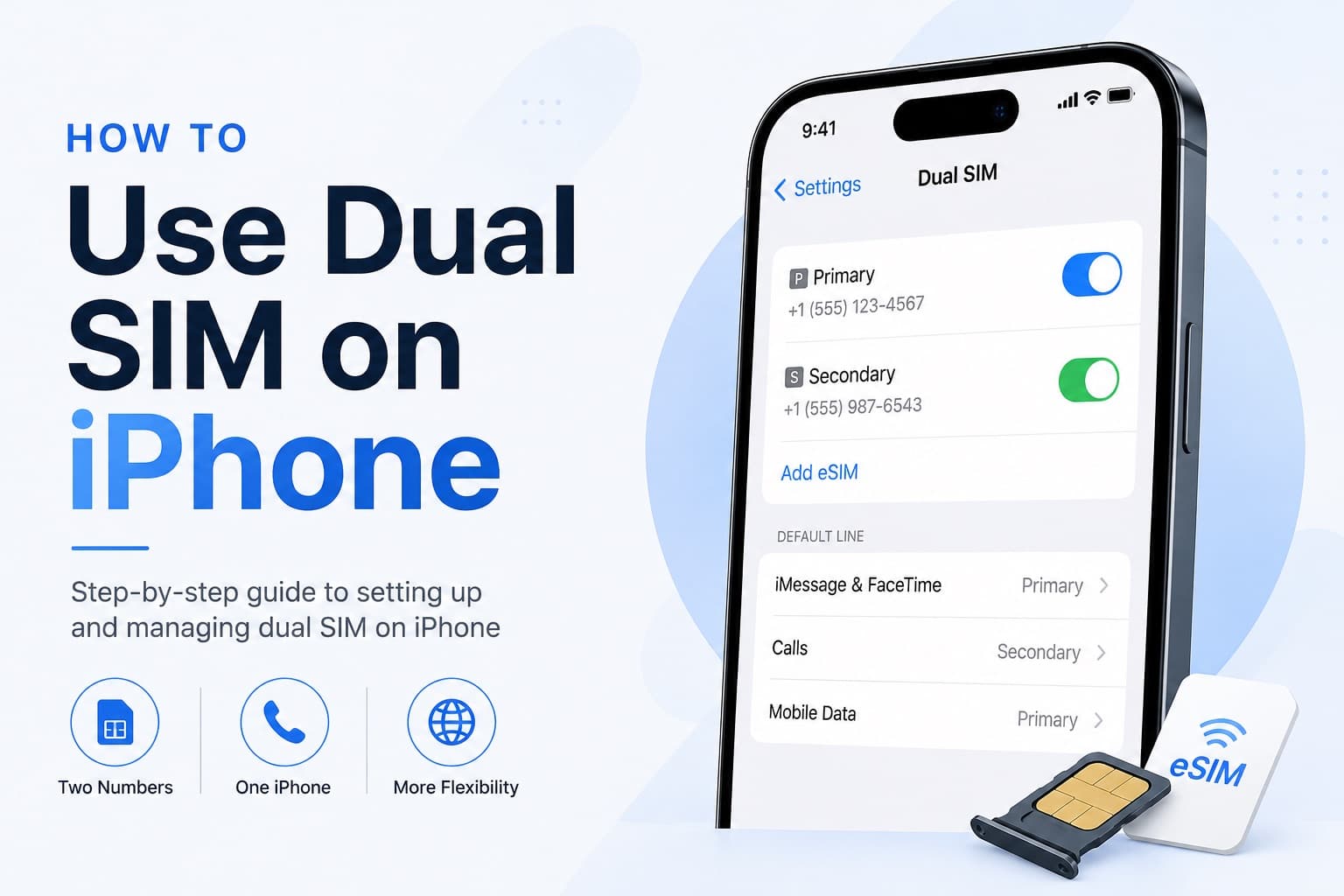
How to Receive SMS and Bank Texts Abroad Using a Travel eSIM
A properly configured dual-SIM iPhone lets you receive bank texts and 2FA codes on your home number while running affordable data through a travel eSIM. This guide walks you through every setting you need to configure before you fly.
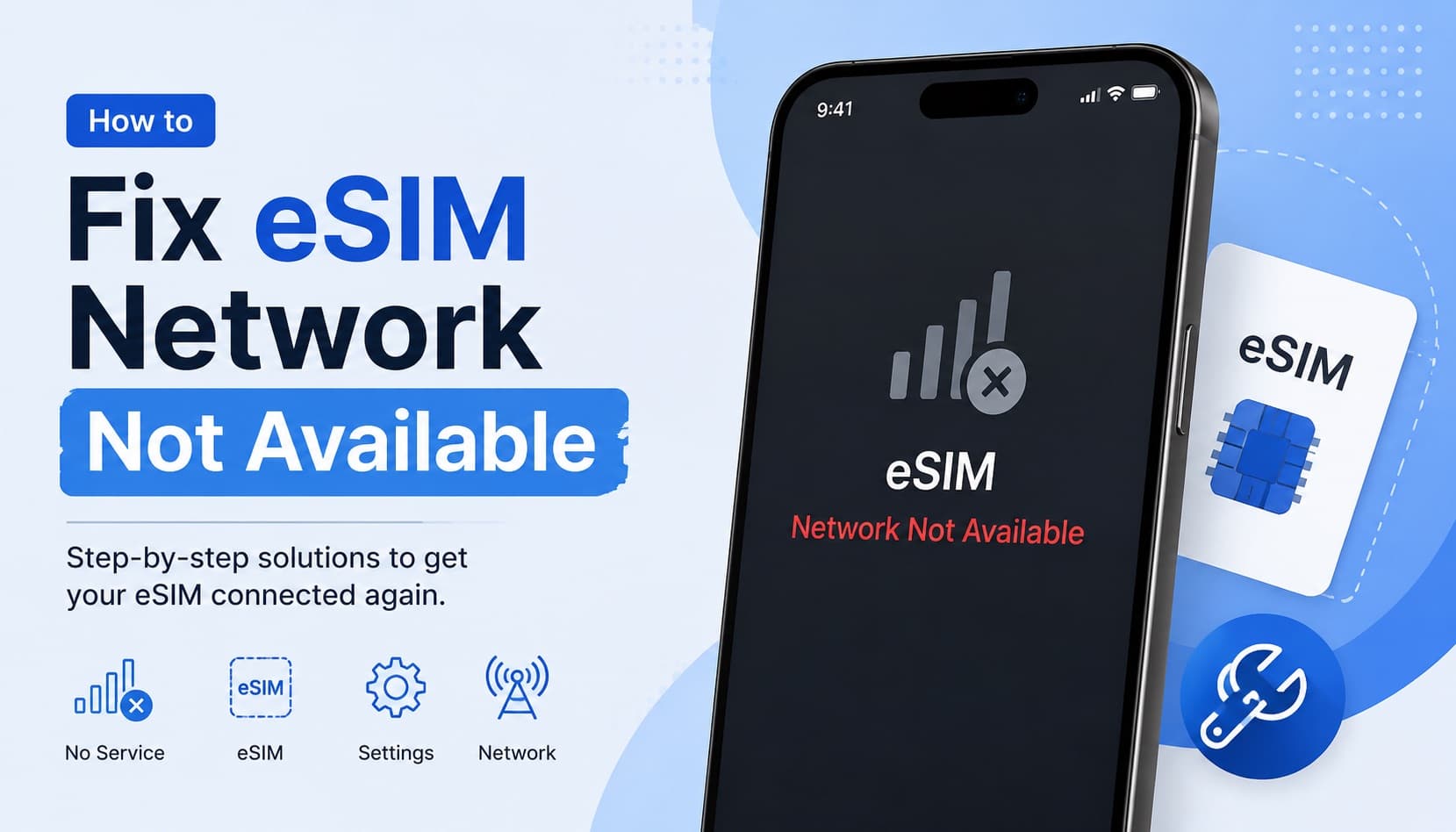
Fixing eSIM Network Not Available: Multi-Network Switching vs QCI Priority
The eSIM network not available error usually comes down to one of three causes: no supported partner network in range, an activation issue, or a settings problem blocking cellular data. This guide explains how to diagnose each one and fix it fast.